Kaoto for everyone: full keyboard navigation and screen reader support on the canvas


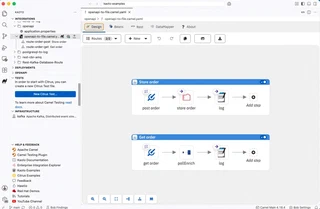
Great integrations are built by great teams, and great teams are made of people who work in different ways. Kaoto’s visual canvas is designed to welcome all of them. With the new 2.14 release, the canvas takes a big step forward. It is now fully usable from the keyboard and announced clearly by screen readers. You can move through a route, open a step, change its configuration and jump back to the canvas, all without leaving the keys. Accessibility is part of building a great product, and this work moves the canvas toward the WCAG accessibility guidelines. Whether you rely on assistive technology, love a keyboard-first workflow, or simply want to move faster, there is something here for you.
A quick tour
Here is what a keyboard-only session looks like.
1. Skip straight to the canvas
In the Kaoto online playground, press Tab when Kaoto loads and a Skip to canvas button appears at the top of the page. Activate it and focus lands directly on the canvas, so you do not have to tab through the whole navigation first. In the VS Code extension there is no skip link: Tab takes you through the editor tabs and the canvas toolbar, and then into the canvas.
2. Move between steps with the arrow keys
Once you are on the canvas, use the arrow keys to travel from step to step. Left and up take you backwards, right and down take you forwards, and when you reach the end of the route the focus wraps back around. Navigation follows the logical order of your route, not the way things happen to be drawn on screen. That includes the branches of a Choice, Try / Catch and other containers, so the order you hear and feel is the order your integration actually runs.
3. Open a step with Enter or Space
Found the step you were looking for? Press Enter or Space to select it. The configuration panel opens and your cursor is already waiting in its search field, so you can start typing the property you want straight away. The same works for placeholders, so you can add a new step or replace an existing one from the keyboard.
4. Open the context menu
Press Shift + F10 or the dedicated Menu key on your keyboard and the context menu opens right next to the step, with all the actions you would normally get from a right-click.
5. Close the panel and pick up where you left off
When you are done, press Escape. The panel closes and focus returns to the step you were working on, so you never lose your place in a large route.
A focus you can actually see
Knowing where you are matters as much as being able to move. Steps, placeholders and containers now show a clear focus ring in the Kaoto brand color, so the current position is always obvious, whatever theme you use. Only the selected step sits in the regular Tab order, while the arrow keys handle everything else. In practice, a single Tab takes you into the canvas and another takes you out again, so moving around the page stays quick and predictable.
Built for screen readers, too
Keyboard support is only half of the story. The canvas now also describes itself to assistive technology:
- The canvas is announced as the ‘Route canvas’.
- Every step, placeholder and container is exposed as a button with its own name, and announces whether it is selected.
- Step icons carry a description of what they represent, so you know what each step does at a glance, visually or by ear.
- The close button of the configuration panel is clearly labeled.
The result is a canvas you can fully understand and use without seeing it.
Keyboard cheat sheet
| Key | What it does |
|---|---|
Tab | Move into the canvas, or out of it. In the playground, the first stop on the page is Skip to canvas |
Arrow keys | Move between steps, placeholders and containers |
Enter / Space | Select the focused element and open its configuration |
Shift + F10 / Menu | Open the context menu |
Delete | Select a step, then press Delete to remove it |
Escape | Close the panel and return to the canvas |
Let’s build it together
This is an important step, but accessibility is a journey and we want to keep improving. If something does not work as you expect, or you have ideas to make the canvas better for your workflow, we would love to hear from you.
Join the conversation in the GitHub discussions or create an issue.
Give it a try
- Kaoto online playground: the full experience, including Skip to canvas
- Kaoto is available as a VS Code extension: the same canvas keyboard and screen reader support, reached through the editor tabs and toolbar instead of a skip link
Put the mouse aside for a moment, press Tab, and see where the keyboard takes you. 🐫

