Drag & Drop in Kaoto: Integration at the Speed of Sight

Introduction
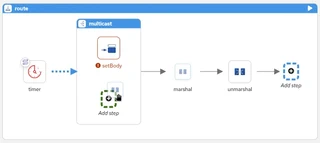
Building integration flows should be intuitive and efficient. With Kaoto’s drag-and-drop functionality, you can now reshape your Apache Camel routes directly on the canvas - eliminating tedious manual editing or complex refactoring. Simply grab a step, drag it to where you need it, and watch your integration flow transform in real-time.
What makes Kaoto’s drag and drop special?
- Visual feedback with intelligent drop zone indicators
- Support for complex nested container movements
- Cross-route step transfers
- Full undo/redo support for safe experimentation
In this article, we’ll explore the full range of drag-and-drop capabilities in Kaoto, from basic step reordering to advanced cross-route movements and container reorganization.
Note: Drag and drop support was introduced in Kaoto 2.7 as an experimental feature and has been continuously improved in subsequent releases, and is now enabled by default in Kaoto 2.10.
What Kind of Drag and Drop is Supported?
Kaoto’s drag-and-drop system is designed to handle various scenarios you’ll encounter when building and refining integration flows. Before you explore each capability in detail, it’s important to know that Kaoto uses an intelligent visual feedback mechanism to guide your drag-and-drop operations:
- Dashed blue outlines: While you drag, every place that can accept your step or branch shows a dashed blue outline, indicating “this is a valid drop zone.” For a dragged step node, the valid drop zones are either an edge (the connector connecting the two step nodes) or a placeholder node. For a dragged sub-container node like a ‘when’ inside a ‘Choice’, the valid drop zones are either another ‘when’ or a placeholder inside the ‘Choice’.
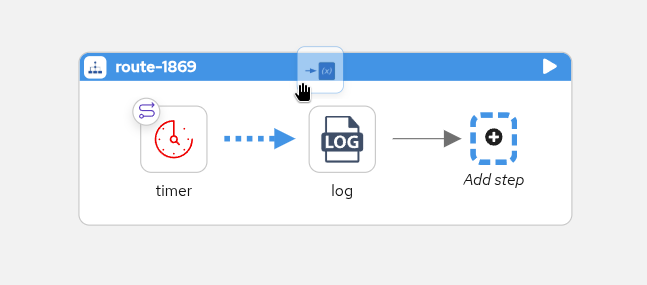
Blue dashed outlines indicate all valid positions where a step can be dropped - either on an edge between steps or on a placeholder node
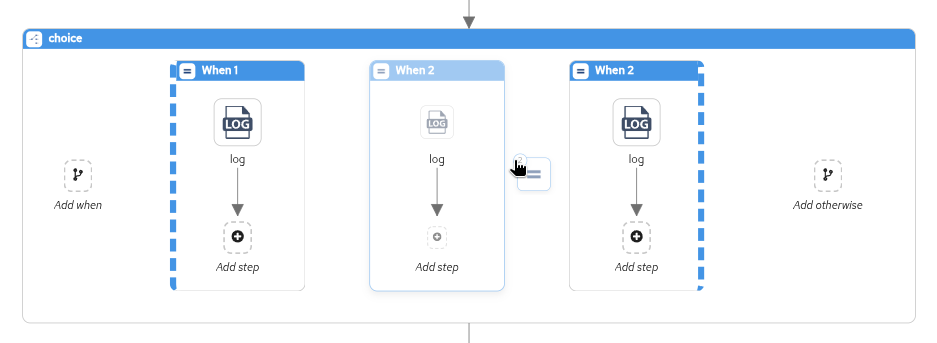
When dragging a sub-container like a ‘when’ branch, valid drop zones include other ‘when’ branches or placeholders within the Choice EIP
Note: When re-ordering containers (such as ‘when’ branches inside a ‘Choice’), the visual feedback indicates the move direction relative to the drop target’s current position.
- Green highlights: When you move the pointer over a compatible target, that target shows stronger feedback with a green highlight. That means: release here to drop.
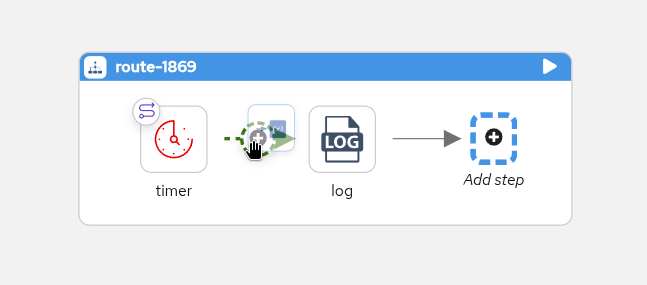
Green highlight appears when hovering over a valid edge, indicating you can release to insert the step between existing nodes
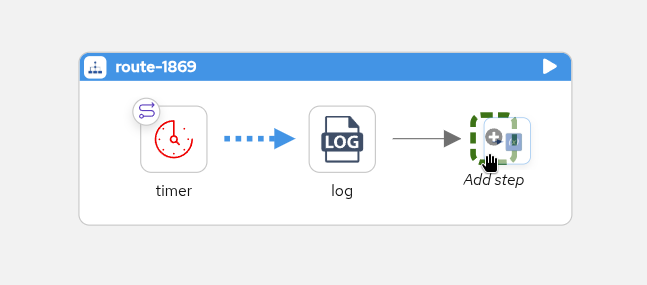
Placeholder nodes show green highlight when hovered, allowing you to append steps at the end of a sequence
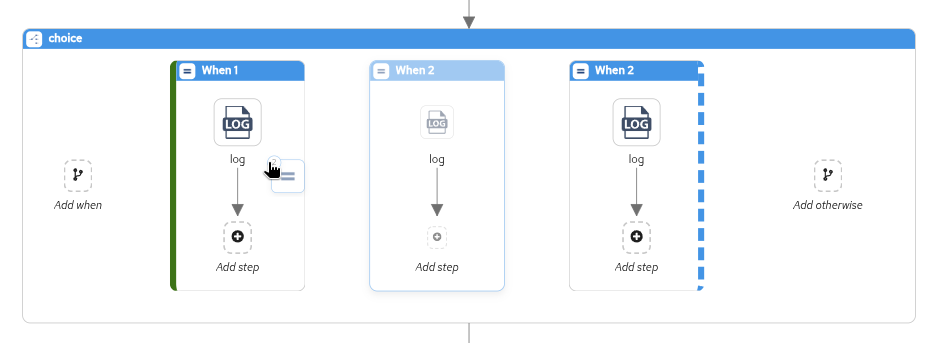
Container nodes highlight in green when you can drop a compatible sub-container, showing the relative position where it will be inserted
- No feedback = not a valid target: If a node or area does not light up while you drag, Kaoto is not offering it as a drop target for that move. You don’t need to guess - no droppable styling means this isn’t a legal target for what you’re dragging. This keeps experimentation safe: you learn where moves are allowed by watching the canvas respond as you drag.
Now that you understand how visual feedback guides your drag operations, let’s explore the specific capabilities available in Kaoto.
Moving Steps Within a Route
The most common use case is reordering steps within a single route. Whether you need to move a transform step before a filter or reposition steps inside the filter container, Kaoto makes it effortless.
How it works:
- Click and hold on any step node in your route
- Drag it to the desired position
- Visual indicators show valid drop zones
- Release to place the step in its new location
Use cases:
- Reorder steps in a route to optimize processing order
- Move a step directly into a nested container or move it back out
Moving Steps Across Routes
When several routes or flows are visible on the canvas, and you need to move functionality from one route to another, you can drag a step to another route with the same approach: drop only where you see compatible feedback.
How it works:
- Select a step from the source route
- Drag it over to the target route
- Drop it at the desired position in the destination route
- The step maintains its configuration in the new location
Use cases:
- Move a step or nested steps between different routes
- Split a monolithic route into focused, single-purpose routes
Working With Containers and Sub-Containers
Kaoto supports structured containers - processors that own branches or nested steps, such as:
- Choice with when / otherwise
- Exception handling blocks with onException, doTry / doCatch
Kaoto allows you to reorder these sub-containers within their parent container, giving you complete control over execution flow.
How it works:
- Identify the sub-container you want to move (e.g., a “when” branch in a Choice)
- Drag and drop the entire sub-container to a new position within the parent. Note that only the valid targets provide visual feedback
- Other sub-containers automatically adjust their positions
- The parent container structure remains intact
Use cases:
- Reordering sub-containers within parent containers like reordering “when” conditions in a Choice EIP
- Adjusting the order of exception handlers in a Try-Catch
Reordering Containers Using Placeholders
One of the most powerful features is the ability to move entire sub-containers from one parent to another compatible parent. This can be done by dragging and dropping a container to a compatible container or to a similar placeholder in another parent. This enables sophisticated refactoring scenarios while maintaining the integrity of your integration logic.
How it works:
- Select a sub-container (e.g., a doCatch branch)
- Drag it toward a compatible parent container
- Kaoto highlights compatible drop zones with visual placeholders
- Drop the sub-container into the new parent
- The sub-container adapts to its new context
Use cases:
- Moving “when” conditions to another Choice EIP
- Moving exception handlers to another Try-Catch
Using Undo/Redo to Avoid Bad Drops
Mistakes happen, and sometimes a drag-and-drop operation doesn’t turn out as expected. Kaoto’s undo/redo functionality ensures you can always recover from accidental moves or unwanted changes.
How it works:
- After any unintended drag-and-drop operation, use the undo button on the top bar to undo
- Use the redo button to redo the last action
Benefits:
- Experiment freely without fear of breaking your routes
- Quickly revert complex multi-step reorganizations
- Maintain a complete history of your design changes
Best Practices for Drag and Drop
To get the most out of Kaoto’s drag-and-drop capabilities, keep these tips in mind:
- Plan before you drag: Think about the logical flow before moving steps
- Use visual feedback: Pay attention to the color-coded indicators - blue for all valid zones, green when you hover over a compatible target
- Test after reorganizing: Validate your routes after significant changes
- Leverage undo/redo: Don’t hesitate to experiment - you can always undo
- Combine with other features: Use drag and drop alongside copy/paste and duplicate for efficient workflow design
- Save frequently: While undo/redo is available, regular saves ensure you don’t lose your work
Conclusion
Kaoto’s comprehensive drag-and-drop support transforms how you build and maintain Apache Camel integrations. Whether you’re reordering simple steps, reorganizing complex container structures, or refactoring across multiple routes, the visual canvas gives you the flexibility and control you need.
The combination of intuitive drag and drop, visual placeholders, and undo/redo support makes Kaoto a powerful tool for both rapid prototyping and production-grade integration development.
Let’s Build it Together
Let us know what you think by joining us in the GitHub discussions. Do you have an idea how to improve Kaoto’s drag and drop? Would you love to see a useful feature implemented or simply ask a question? Please create an issue.
Give it a try
- Kaoto online editor
- Kaoto is available as a VS Code extension
Happy integrating! 🚀
