Creating Mappings
Overview
Once you have schemas attached, you can create mappings between source and target fields. The DataMapper offers two primary methods: drag-and-drop for quick mappings and XPath expressions for more control.
Drag and Drop Mapping
The easiest way to create a mapping is by dragging a source field onto a target field. A line will be drawn between the fields to visualize the connection.
Example: Map the Name Field
Drag-and-drop is the fastest way to create simple field mappings. The DataMapper automatically generates the correct XPath expression for you.
XPath Expression Mapping
For more control over your mappings, you can type XPath expressions directly.
Create a Mapping with XPath
Click the 3-dot menu on the target field
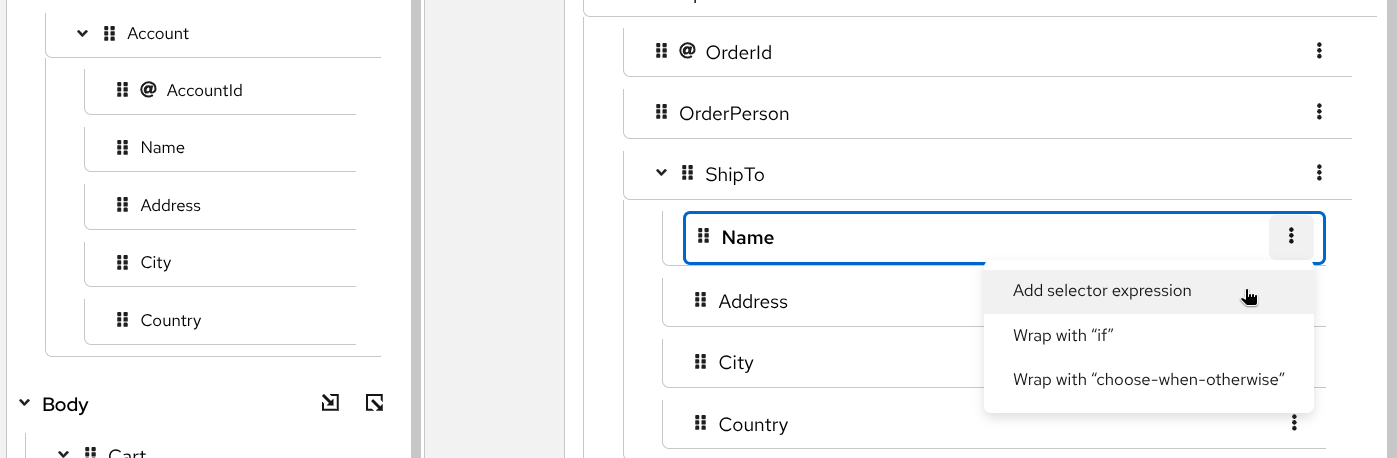
Select 'Add selector expression' Enter your XPath expression
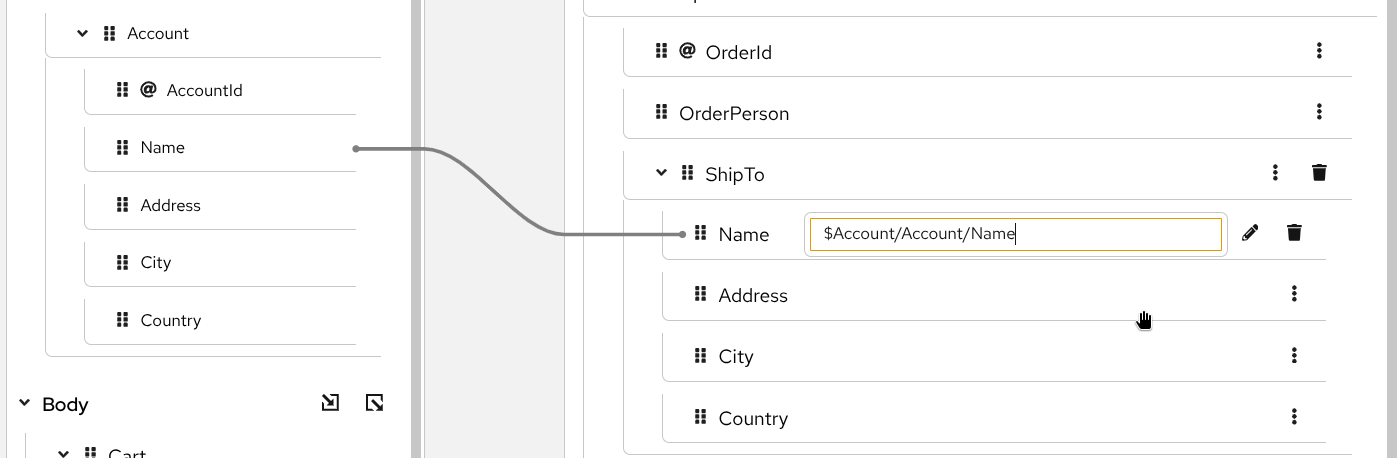
Type the XPath expression
XPath expressions give you full control over data transformation, including string manipulation, calculations, and conditional logic. For complex expressions, consider using the XPath Editor.
Delete a Mapping
If you need to remove a mapping, click the trash icon  next to the target field and confirm the deletion.

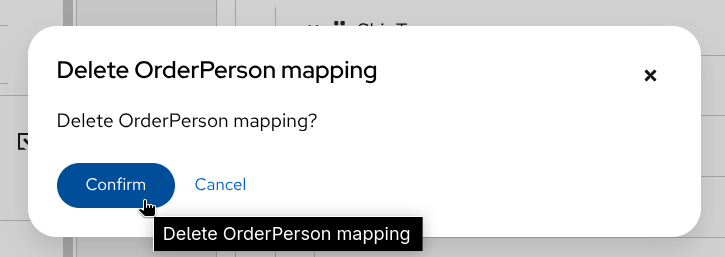
Deleting a mapping is permanent and cannot be undone. Make sure you want to remove the mapping before confirming.
Next Steps
Now that you can create and manage basic mappings:
- Add conditional logic with if, choose-when-otherwise, and for-each
- Use the XPath editor for complex transformations with functions