Conditional Mappings
Overview
The DataMapper supports three types of conditional mappings to handle complex transformation logic:
if- Execute mapping only when a condition is metchoose-when-otherwise- Branch based on multiple conditionsfor-each- Iterate over collection fields (arrays)
If Mapping
Create a mapping that only executes when a specific condition is true.
Steps
Click the 3-dot menu on the target field and select “wrap with if”
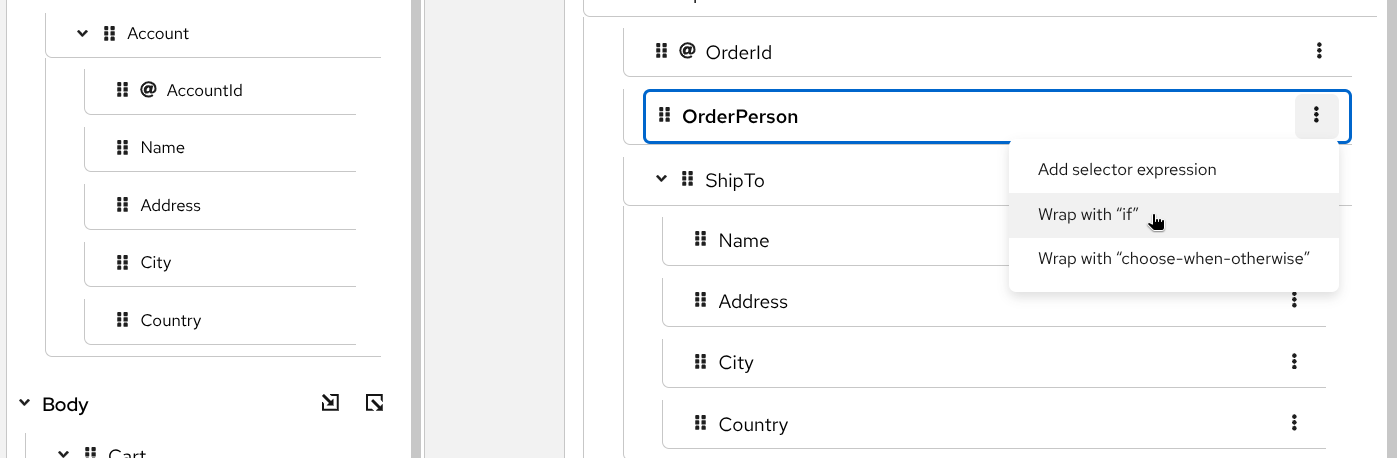
Select wrap with if Configure the condition - Drag source fields or type manually
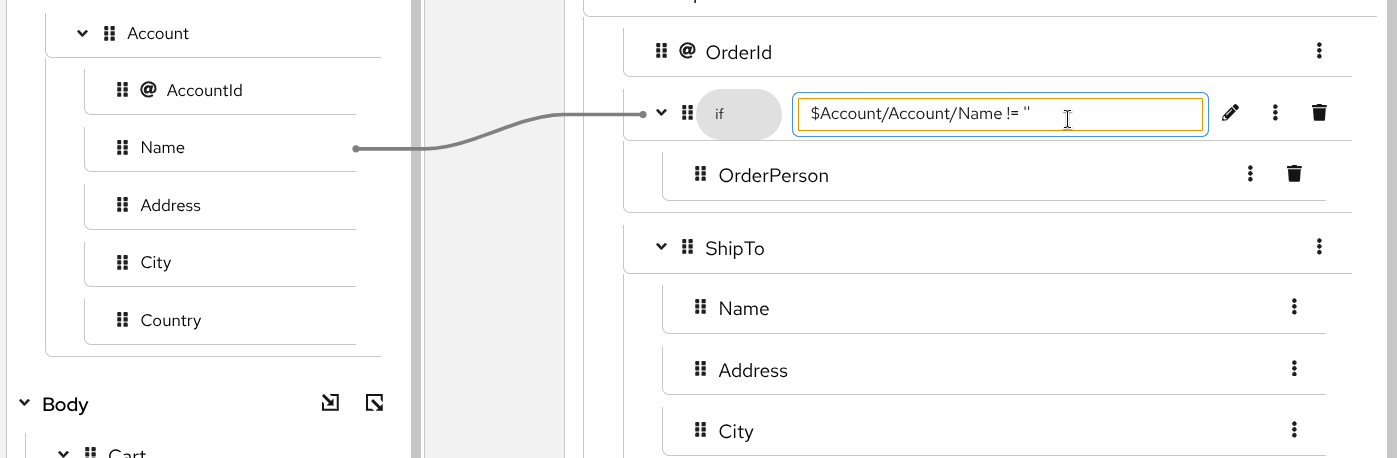
Define the if condition Create the mapping for when the condition is true
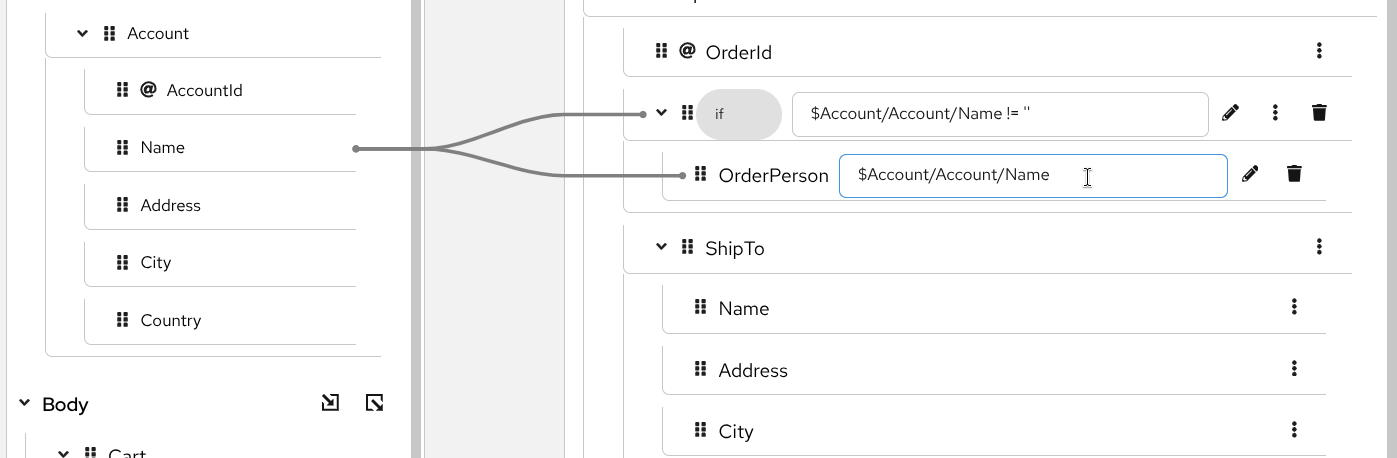
Configure the conditional mapping
You can drag source fields into the condition input to quickly build expressions like $sourceField > 100 or $status = 'active'.
Choose-When-Otherwise Mapping
Create branching logic with multiple conditions, similar to switch-case statements.
Steps
Click the 3-dot menu and select “wrap with choose-when-otherwise”
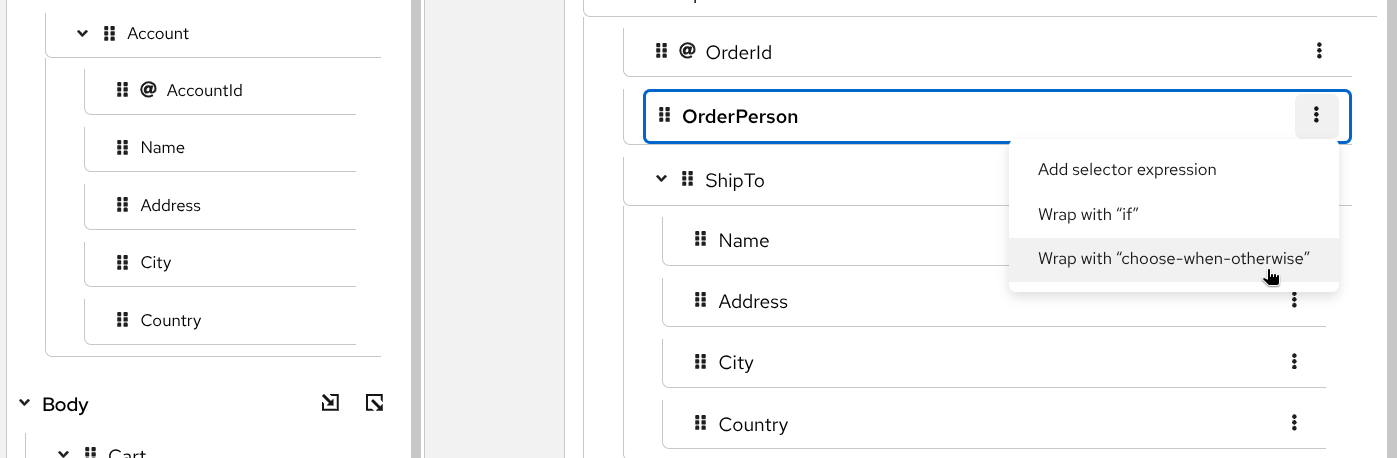
Select choose-when-otherwise Configure when and otherwise conditions - Similar to if mapping, configure the condition and create mappings for both when and otherwise branches
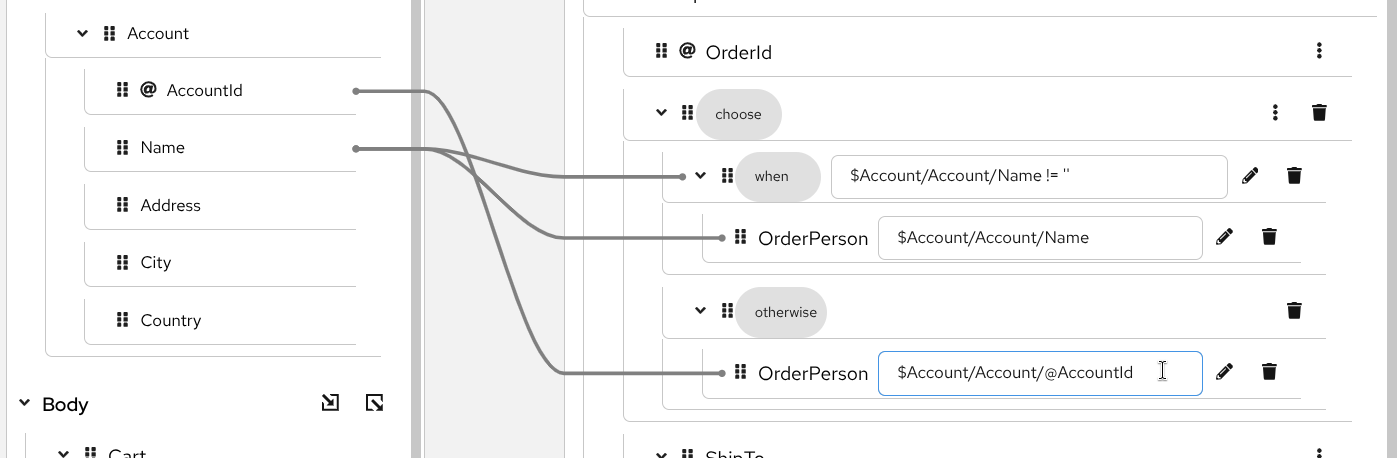
Configure when and otherwise mappings Add more when branches (optional) - If you need multiple conditions, click the 3-dot menu on the choose field and select “Add when” to create additional when branches. Each branch can have its own condition and mappings.
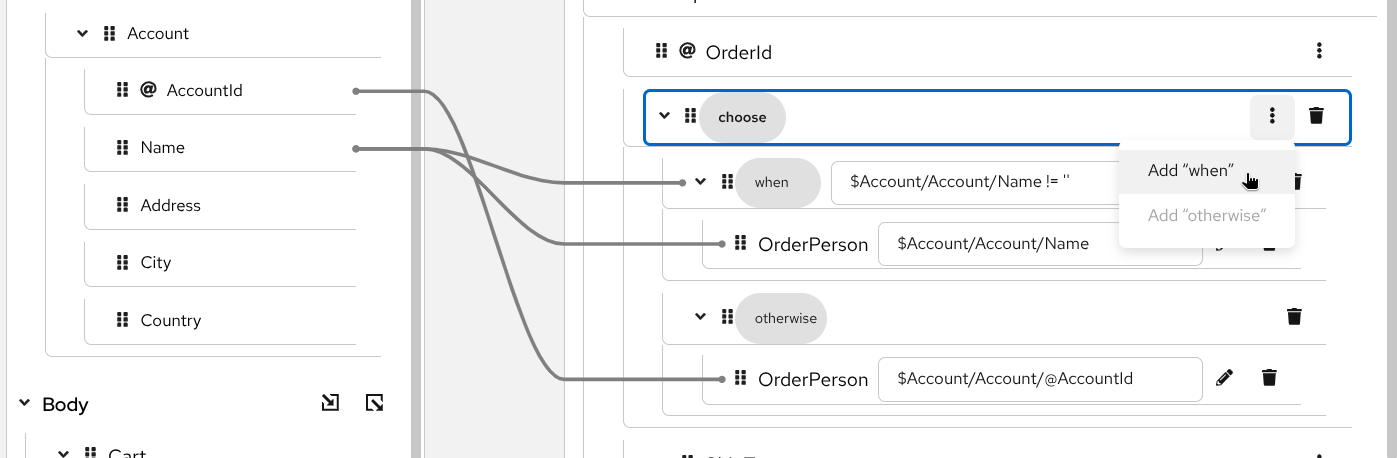
Add another when branch
The otherwise branch executes when none of the when conditions are satisfied, providing a default fallback.
For-Each Mapping
When working with arrays or repeating elements, use for-each mappings to transform each item in the collection. Collection fields are identified by a layer icon  in the document tree.
Steps
Identify the target collection field - Look for fields marked with the layer icon
, indicating they contain multiple itemsCreate the for-each mapping - Click the 3-dot menu on the target collection field and select “wrap with for-each”
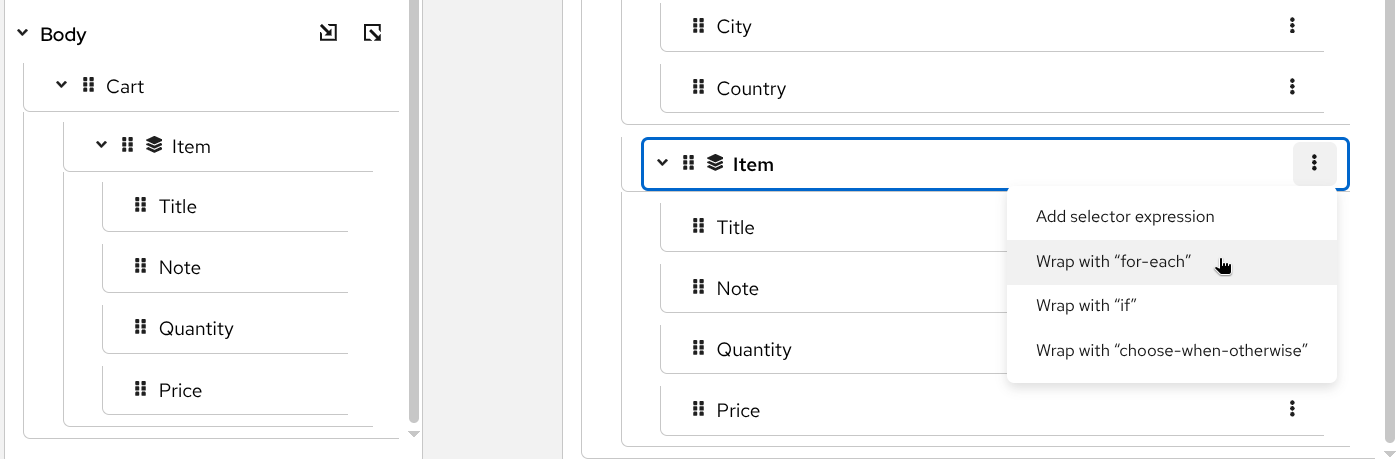
Select wrap with for-each Specify the source collection - Choose which source collection to iterate over. This determines what data will be processed for each target item.
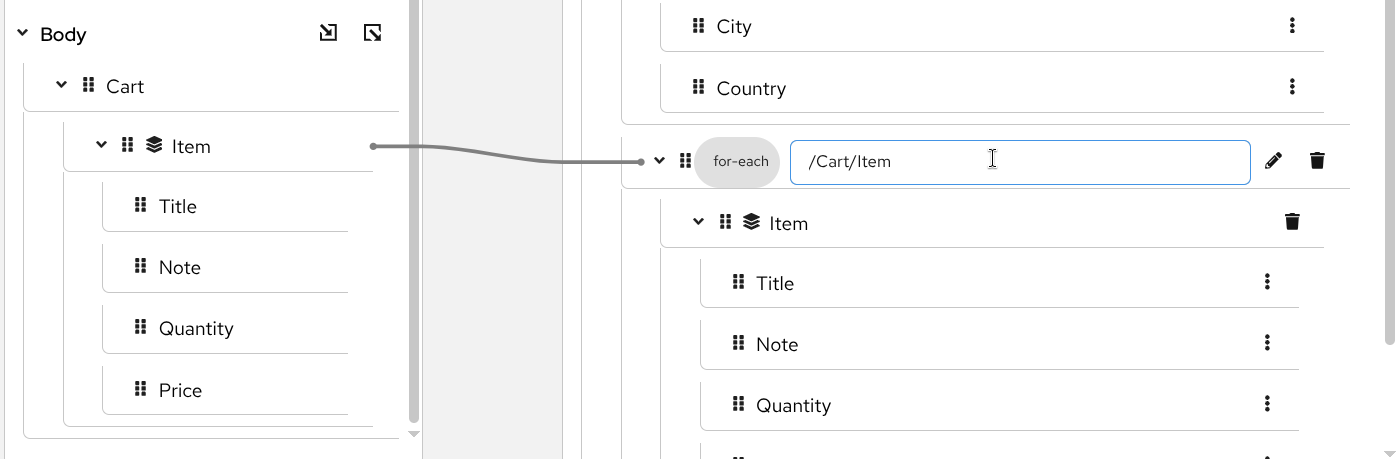
Select source collection to iterate Map the collection item fields - Create mappings for individual fields within each collection item. These mappings will be applied to every item in the collection.
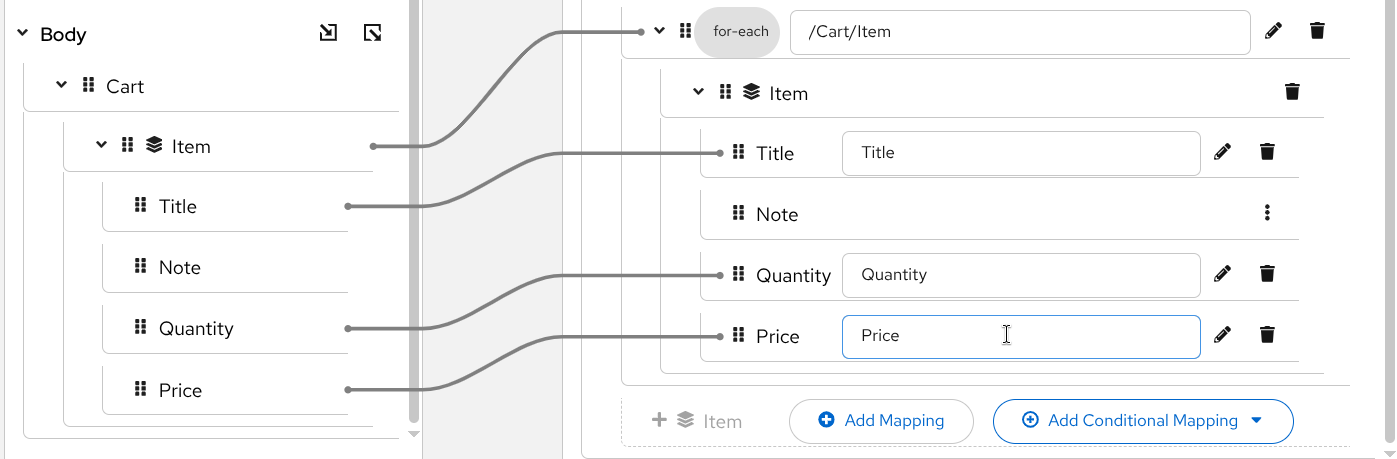
Map fields for each collection item
Inside a for-each mapping, field paths are relative to the collection item. For example, if iterating over Items, you reference Name instead of Items/Name.
Multiple For-Each Mappings
Merge multiple source collections into a single target collection by adding multiple for-each mappings.
Steps
Create the first for-each mapping as described above
Add another for-each mapping - Click “Add Conditional Mapping” in the placeholder below the first mapping, then select “Wrap with for-each”
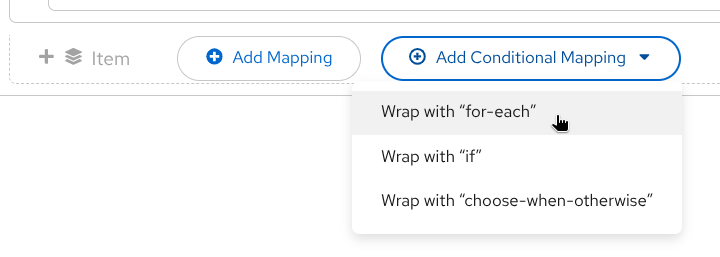
Add second for-each mapping Configure the second collection mappings - Select the second source collection to iterate over, then create field mappings for each item. This allows you to merge data from multiple collections into a single target array, combining items from different sources.
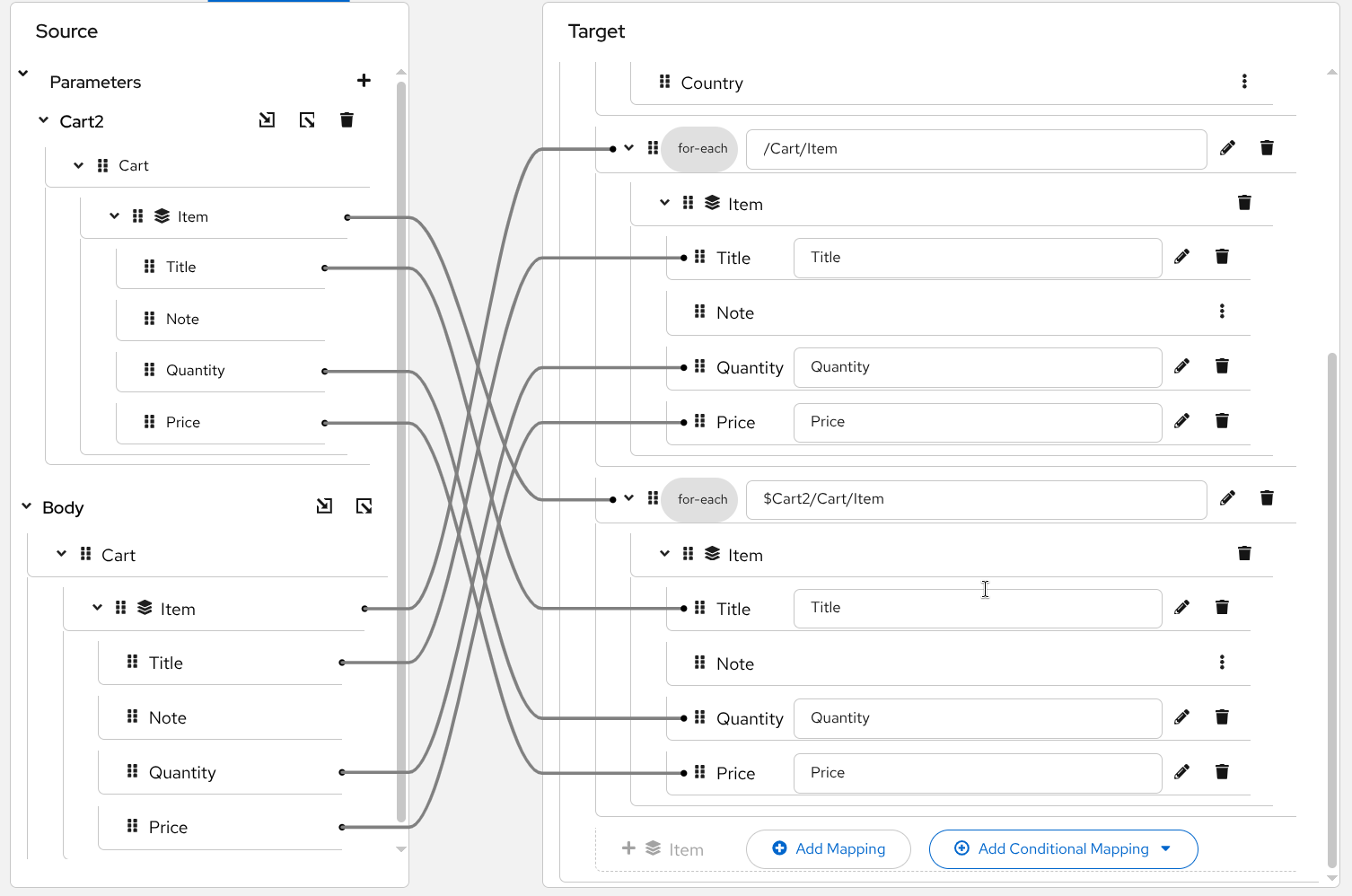
Configure second collection and map its fields
This technique is useful for merging data from multiple sources, such as combining orders from different systems into a single output array.
Next Steps
Now that you understand conditional mappings:
- Use the XPath editor for complex expressions with functions
- Return to the DataMapper overview to explore other features