XPath Editor
Overview
The XPath Editor provides a powerful way to create complex data transformations beyond simple field-to-field mappings. While drag-and-drop is great for basic mappings, the XPath Editor lets you combine fields, apply functions, perform calculations, and implement sophisticated business logic.
When to use the XPath Editor:
- Combining multiple source fields into one target field
- Applying string manipulation (concatenation, substring, case conversion)
- Performing mathematical calculations
- Using conditional expressions within a single mapping
- Applying XPath functions for date formatting, number formatting, and more
The XPath Editor is under active development. Current features include drag-and-drop for fields and functions, with more syntax assistance planned for future releases.
Opening the XPath Editor
To edit or create complex XPath expressions, click the pencil icon on any target field that has a mapping. This opens the XPath Editor where you can build your expression.
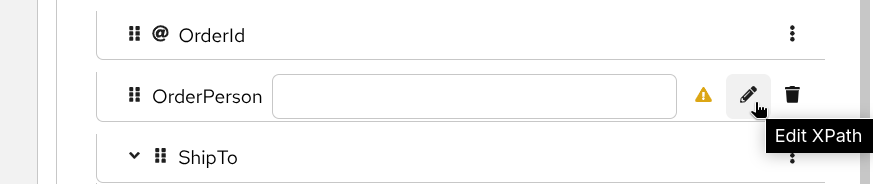
Building XPath Expressions
The XPath Editor interface provides two main areas: a palette on the left with fields and functions, and an expression editor on the right.
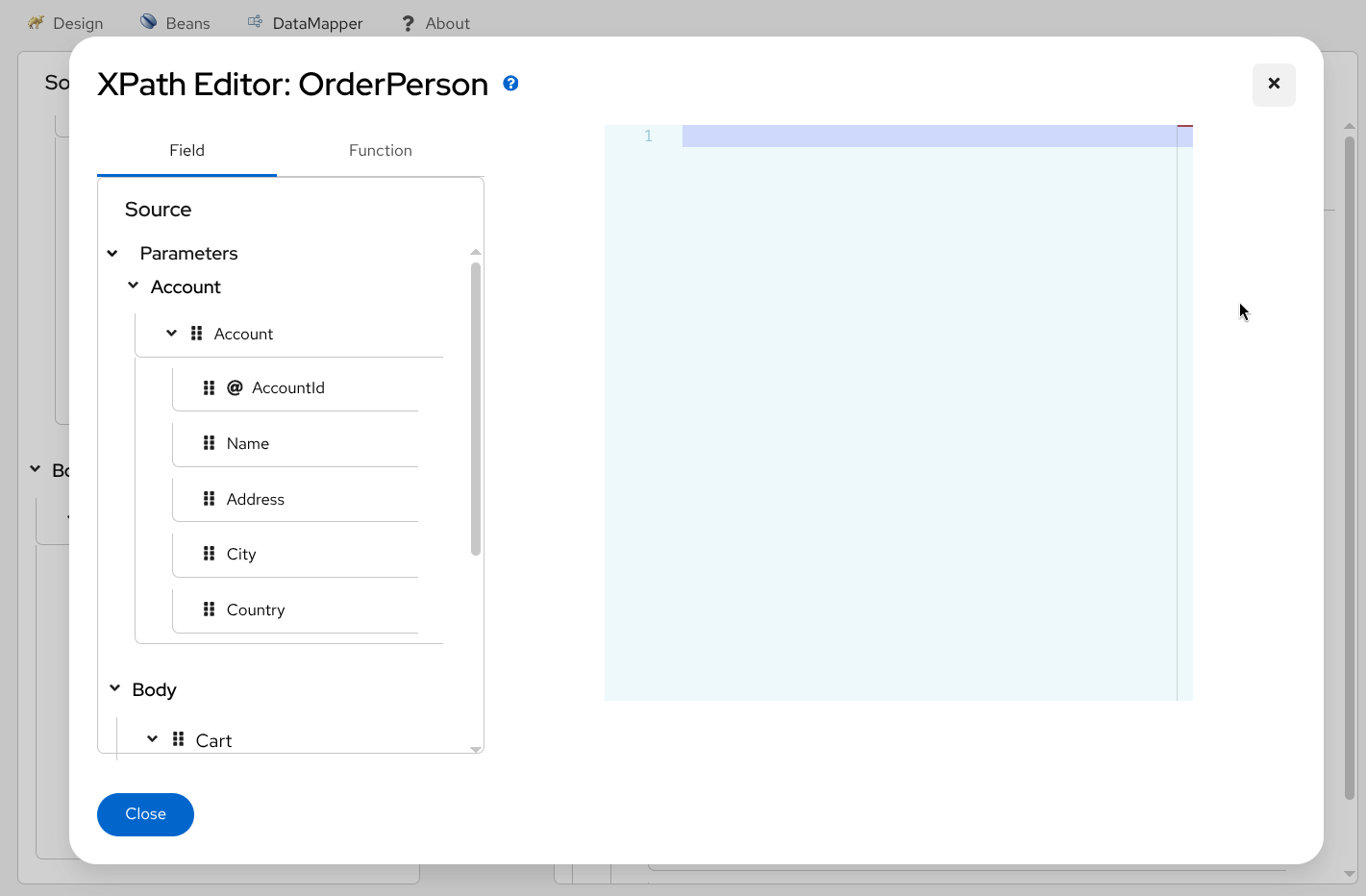
Adding Fields
You can add source fields to your expression by:
- Typing directly - Enter field paths manually using XPath syntax
- Drag and drop - Drag fields from the Fields tab and drop them into the editor
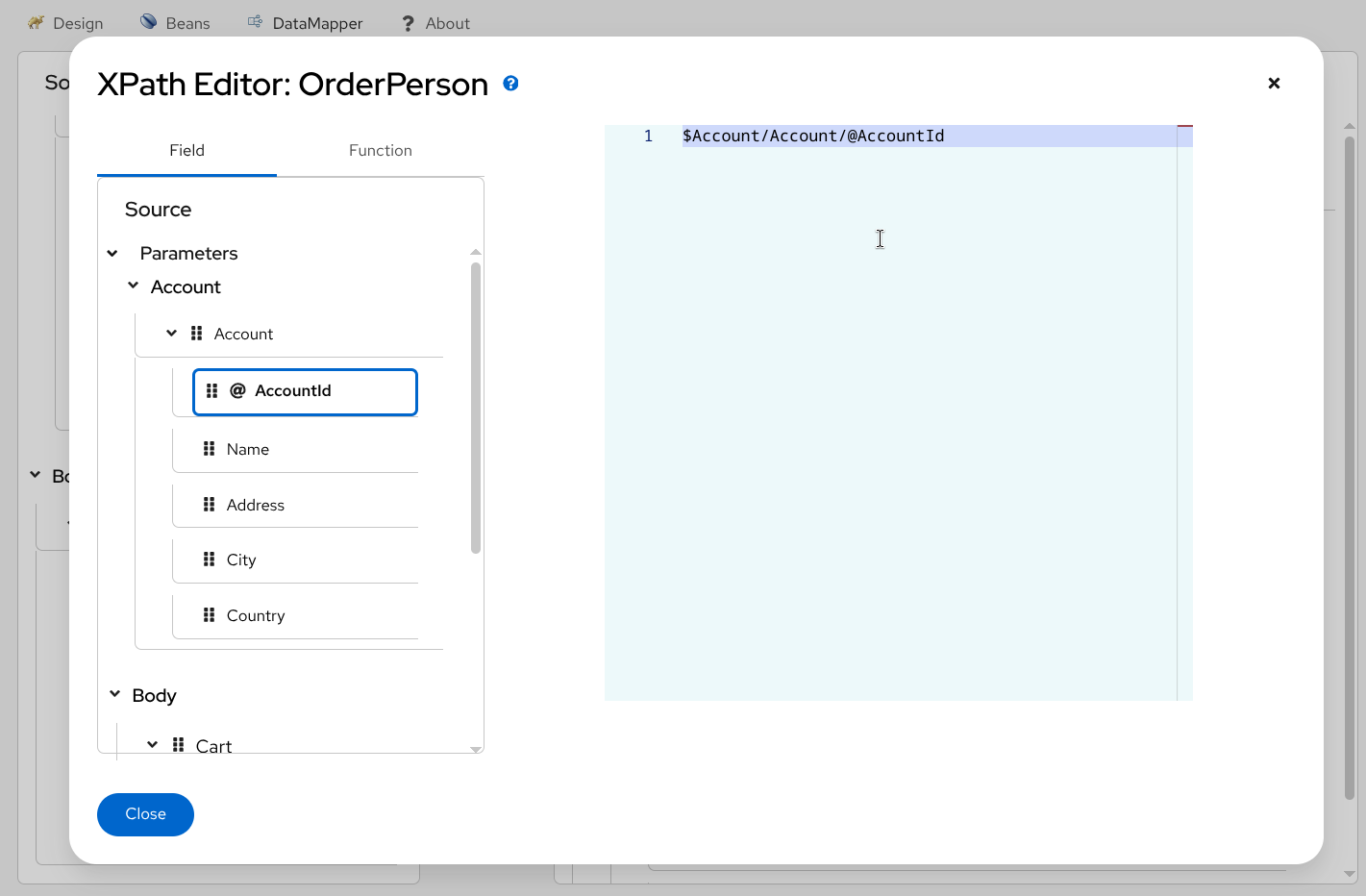
Using XPath Functions
The XPath Editor provides access to a comprehensive library of functions for data transformation:
String Functions:
concat()- Combine multiple stringssubstring()- Extract part of a stringupper-case(),lower-case()- Change text casenormalize-space()- Remove extra whitespace
Numeric Functions:
sum(),avg(),min(),max()- Aggregate calculationsround(),floor(),ceiling()- Number roundingformat-number()- Number formatting
Date/Time Functions:
current-date(),current-time()- Get current date/timeformat-date(),format-time()- Format date/time values
Conditional Functions:
if()- Inline conditional logicchoose()- Multi-branch conditionals
To use functions:
Switch to the Functions tab in the left palette
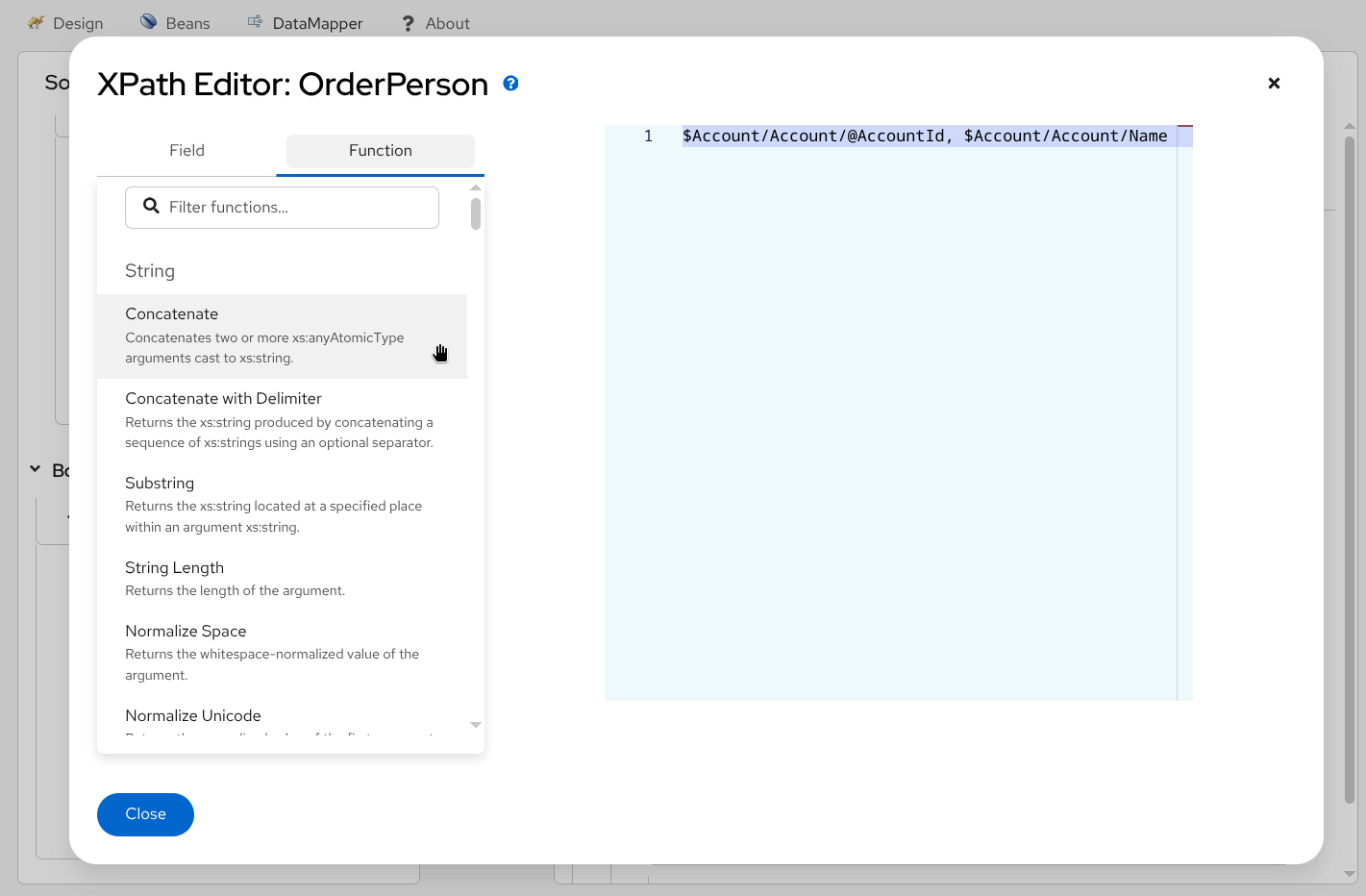
Browse available XPath functions Drag the function you need and drop it into the editor
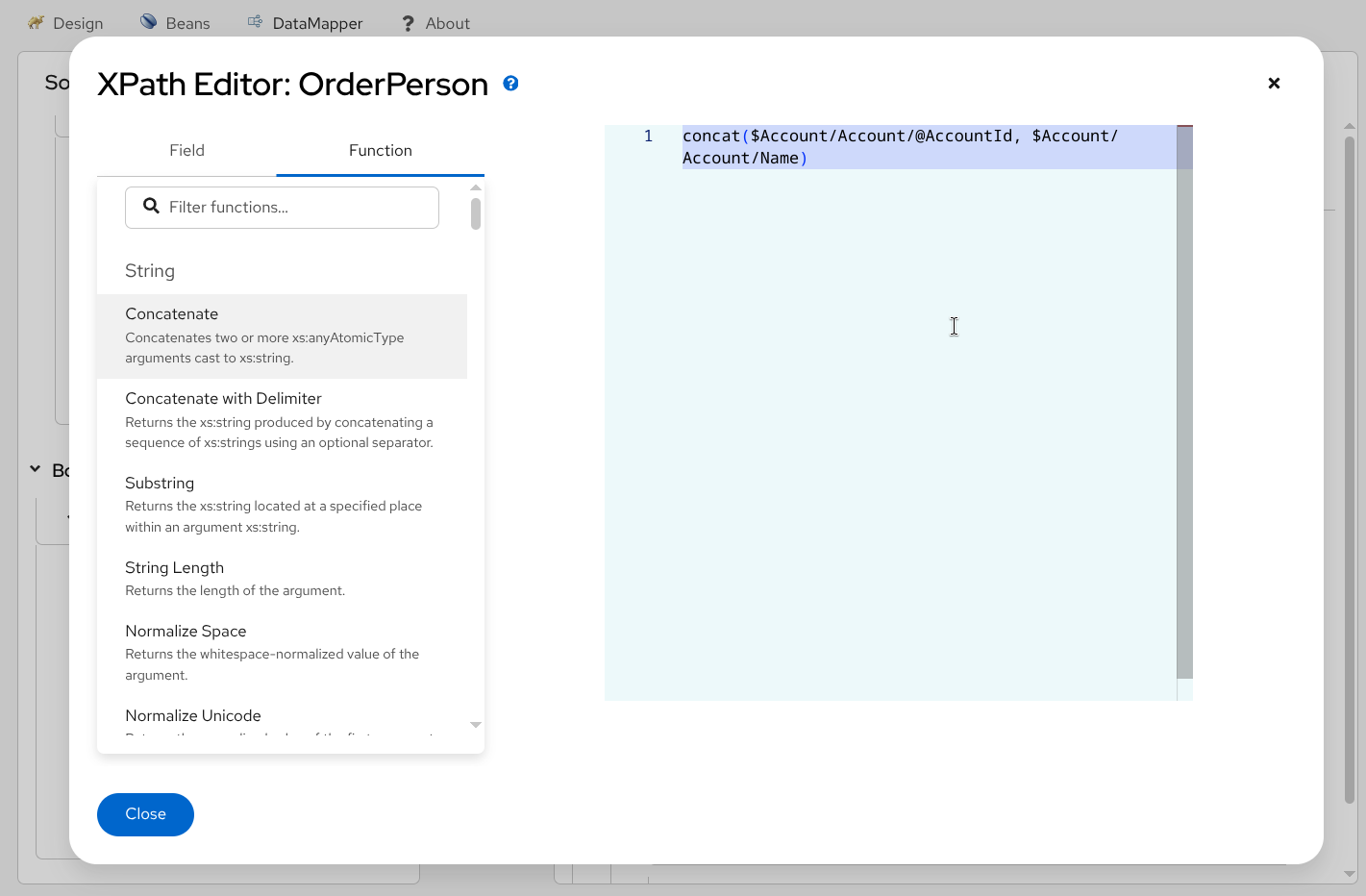
Drag and drop functions Fill in the function parameters with field references or literal values
Saving Your Expression
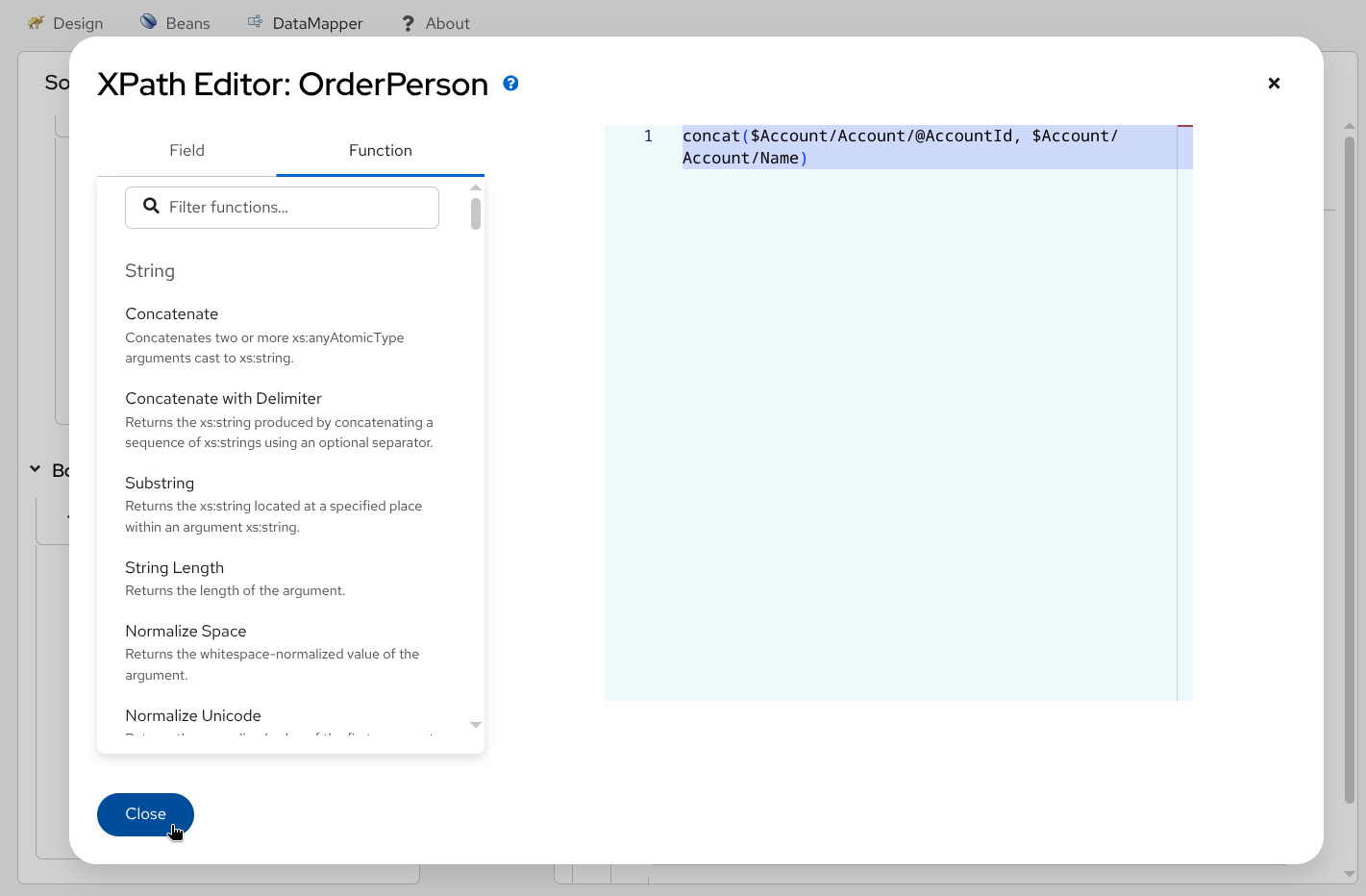
Once you’ve built your XPath expression, click the Close button to apply it to the mapping.
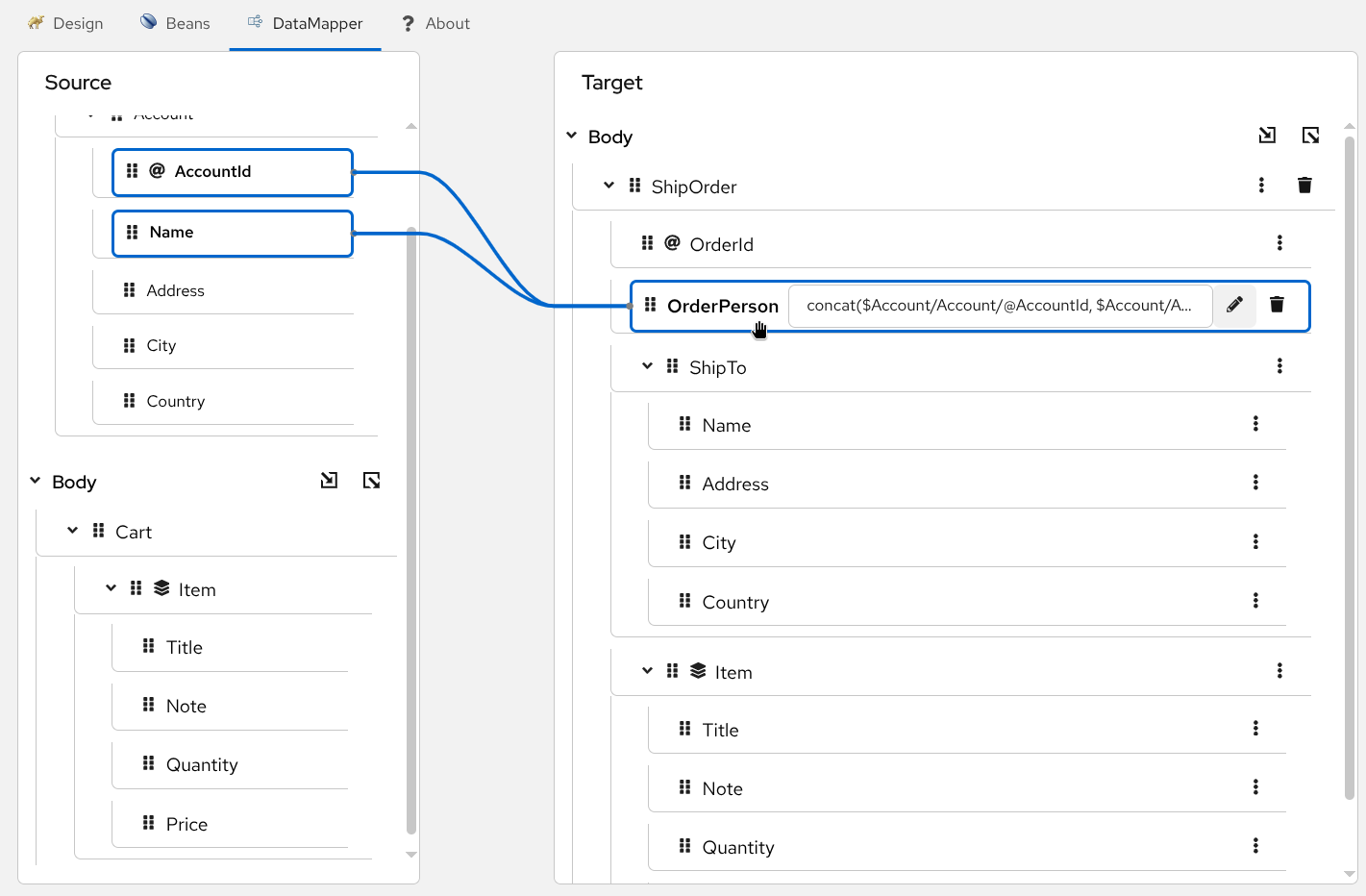
The mapping will now appear in the tree view with your custom XPath expression.
Start with simple expressions and test them before adding complexity. You can always reopen the XPath Editor to refine your expression.
Next Steps
You’ve now learned all the core DataMapper features! You can:
- Create simple and complex mappings between XML and JSON data
- Use conditional logic with if, choose-when-otherwise, and for-each
- Build advanced transformations with XPath functions
- Manage your schemas, parameters, and mappings
For more information, visit the Kaoto documentation.