Advanced Features
Overview
Once you’re comfortable with basic mappings and conditional logic, the DataMapper offers advanced features for handling complex transformation scenarios. This guide covers advanced capabilities for working with complex schemas:
- Field Override - Change field types or substitute elements for complex schemas
- Choice Support - Handle schema choice elements (
xs:choice)
Field Override
Field override allows you to change how a schema field is interpreted in your transformation. The DataMapper supports two types of overrides, both accessed through the same modal dialog:
- Override Type - Change a field’s type to a compatible derived type
- Substitute Element - Replace an element with one from its substitution group
Field override options depend on your schema definitions. To enable type overrides, your schema must define type extensions using xs:extension or xs:restriction. For field substitutions, your schema must define substitution groups. You can attach additional schema files that extend your base schema to unlock these capabilities.
When to Use Field Override
Override Type:
- The source data uses a derived type (e.g.,
SpecialAddressextendsAddress) - You need to access additional fields defined in a subtype
- The actual runtime data differs from the base schema definition
Substitute Element:
- Working with XML Schema substitution groups
- Need to select a specific concrete element from a group of alternatives
- Handling polymorphic data structures
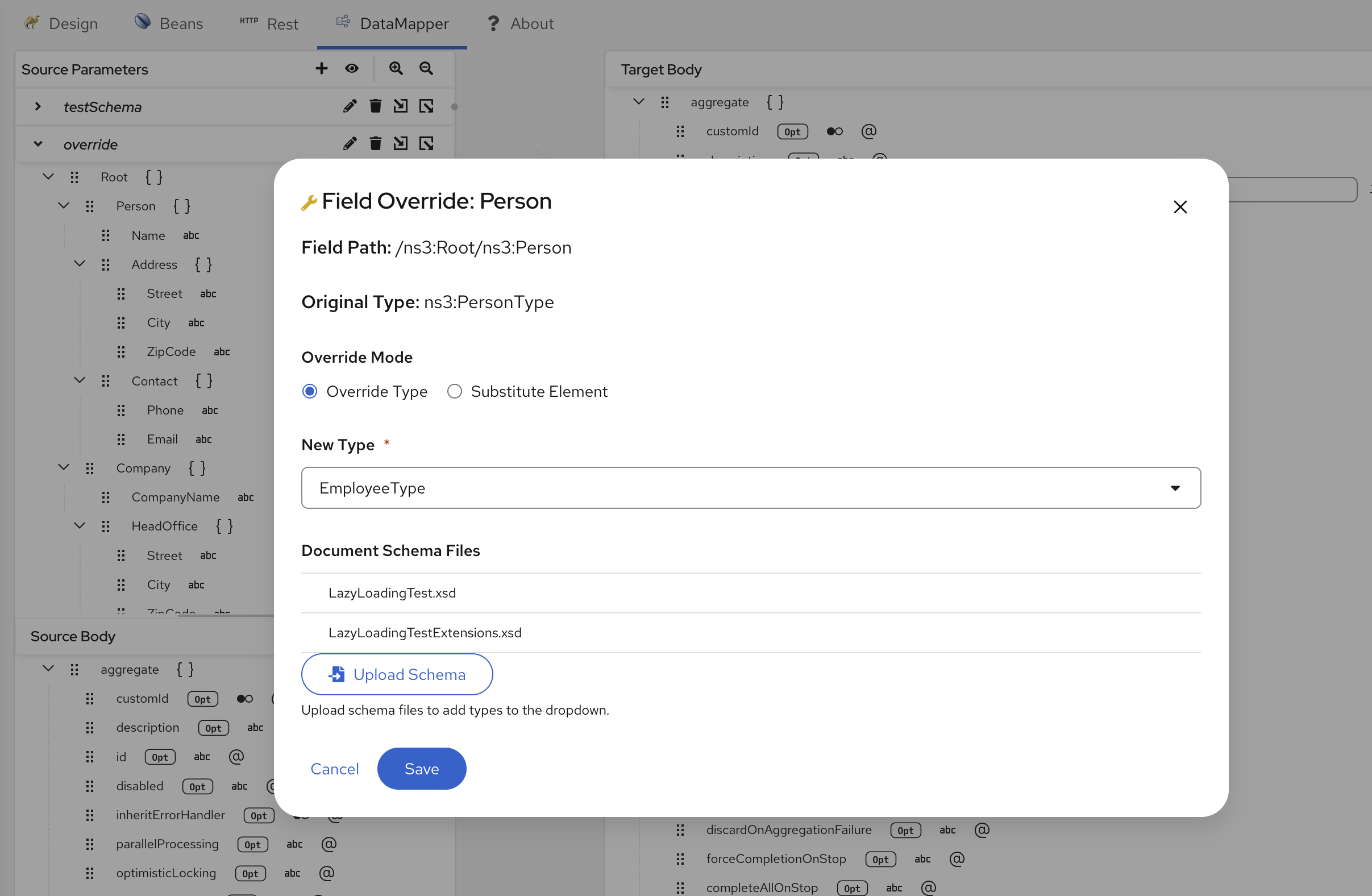
Understanding the Override Modal
When you select “Field Override” from a field’s context menu, the DataMapper opens a modal dialog with radio buttons to switch between two override types:
- Override Type - Lists compatible derived types within the type hierarchy
- Substitute Element - Shows available substitution group members
Use the radio buttons to switch between override types. The modal displays only valid options based on the schema definition, ensuring type safety.
Extending Schemas for Field Override
If the Field Override modal shows no available options, your schema may not define the necessary extensions or substitution groups. You can attach additional schema files that extend your base schema:
For Override Type:
- Create or attach a schema that extends base types using
xs:extensionorxs:restriction - Example: A schema defining
SpecialAddressthat extendsAddress
For Substitute Element:
- Create or attach a schema that defines substitution groups
- Example: A schema defining
Car,Truck, andMotorcycleas substitutes forVehicle
Once you attach the extending schema file using the schema attachment process, the Field Override modal will display the newly available options.
You can attach multiple schema files to the same DataMapper step. This allows you to work with a base schema and one or more extension schemas that define derived types or substitution groups.
Applying an Override Type
Override Type changes a field’s type to a compatible type within the same type hierarchy. Fields with an active override type are marked with a special icon indicator in the document tree.
Steps:
- Right-click on the field you want to override (or use the 3-dot menu)
- Select “Override Field…” from the menu
- Select the “Override Type” radio button in the modal (if not already selected)
- Choose a type from the list of compatible derived types
- The field tree updates to show the new type’s structure
- An icon appears next to the field indicating the override type is active
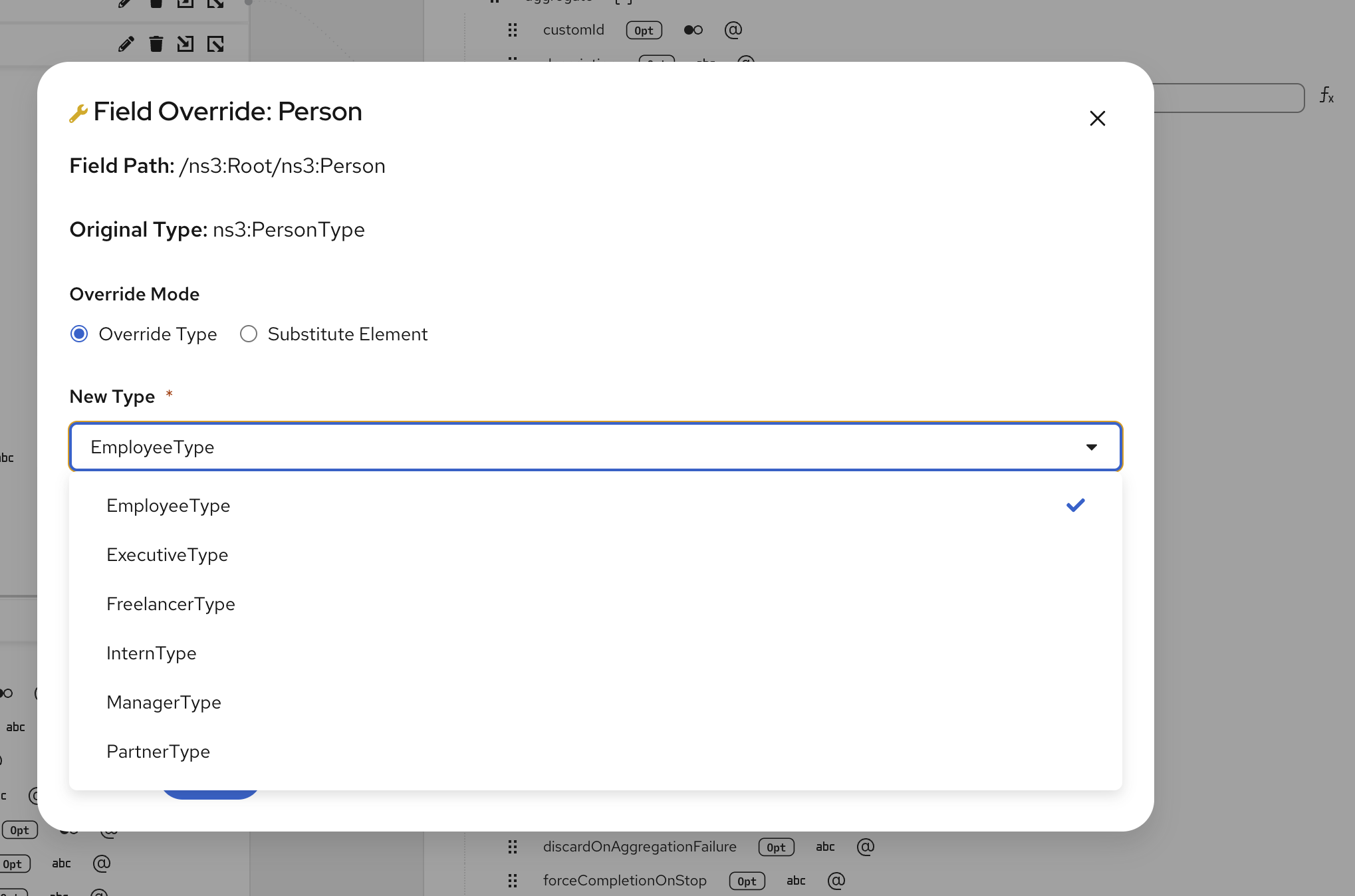
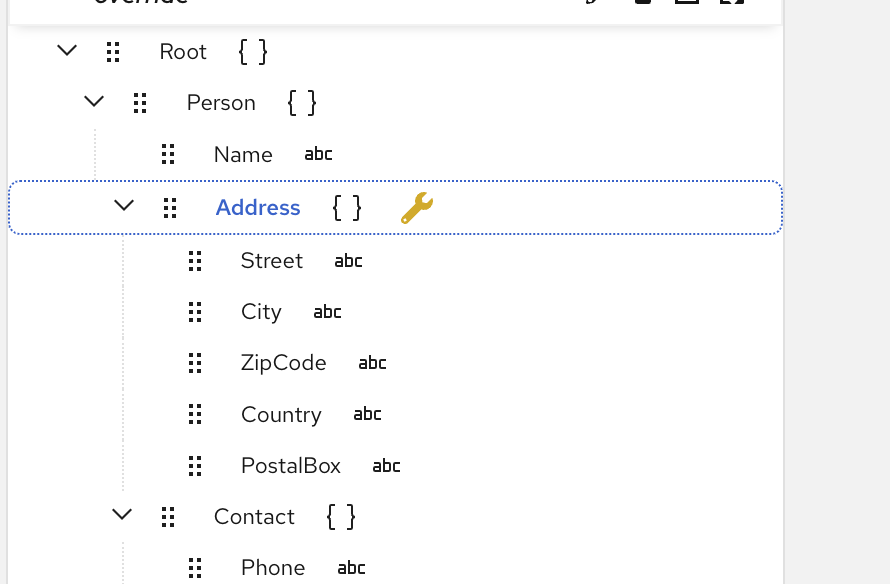
Override Type preserves compatibility with the original schema by only allowing safe type substitutions within the type hierarchy.
Applying a Substitute Element
Substitute Element replaces a schema element with one of its designated substitution elements. Fields with an active substitution are marked with a special icon indicator in the document tree.
Steps:
- Right-click on a field that has available substitutions
- Select “Override Field…” from the menu
- Select the “Substitute Element” radio button in the modal
- Choose a substitute element from the list of substitution group members
- The field updates to reflect the substituted element’s name and structure
- An icon appears next to the field indicating the substitution is active
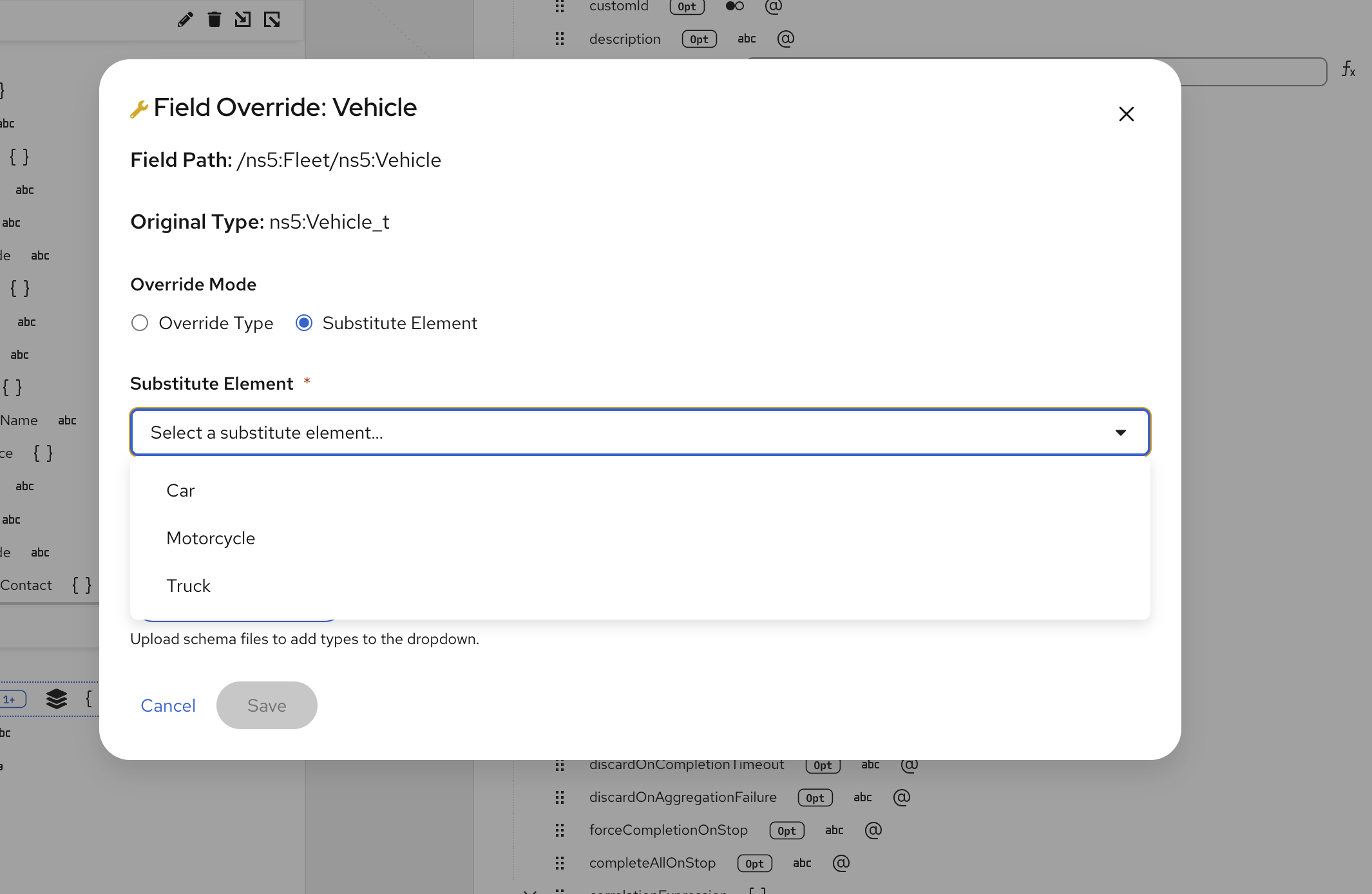
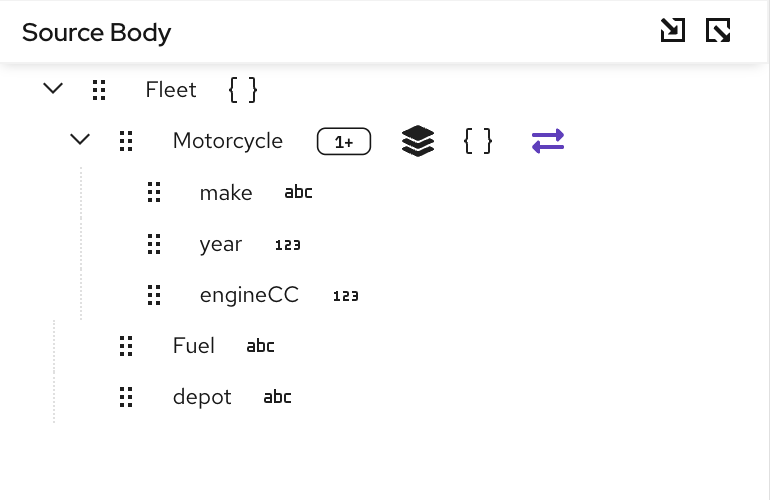
Override Type and Substitute Element are mutually exclusive on the same field. The modal will show only the applicable options based on the field’s schema definition.
Working with Abstract Elements
Abstract elements are special schema elements that cannot be used directly in XML instances - they must be substituted with a concrete implementation. The DataMapper provides two approaches for working with abstract elements.
Viewing Available Implementations
The DataMapper automatically displays abstract elements with their substitution candidates as children in the document tree. You can create mappings directly to these substitution candidates without explicitly applying a substitution.
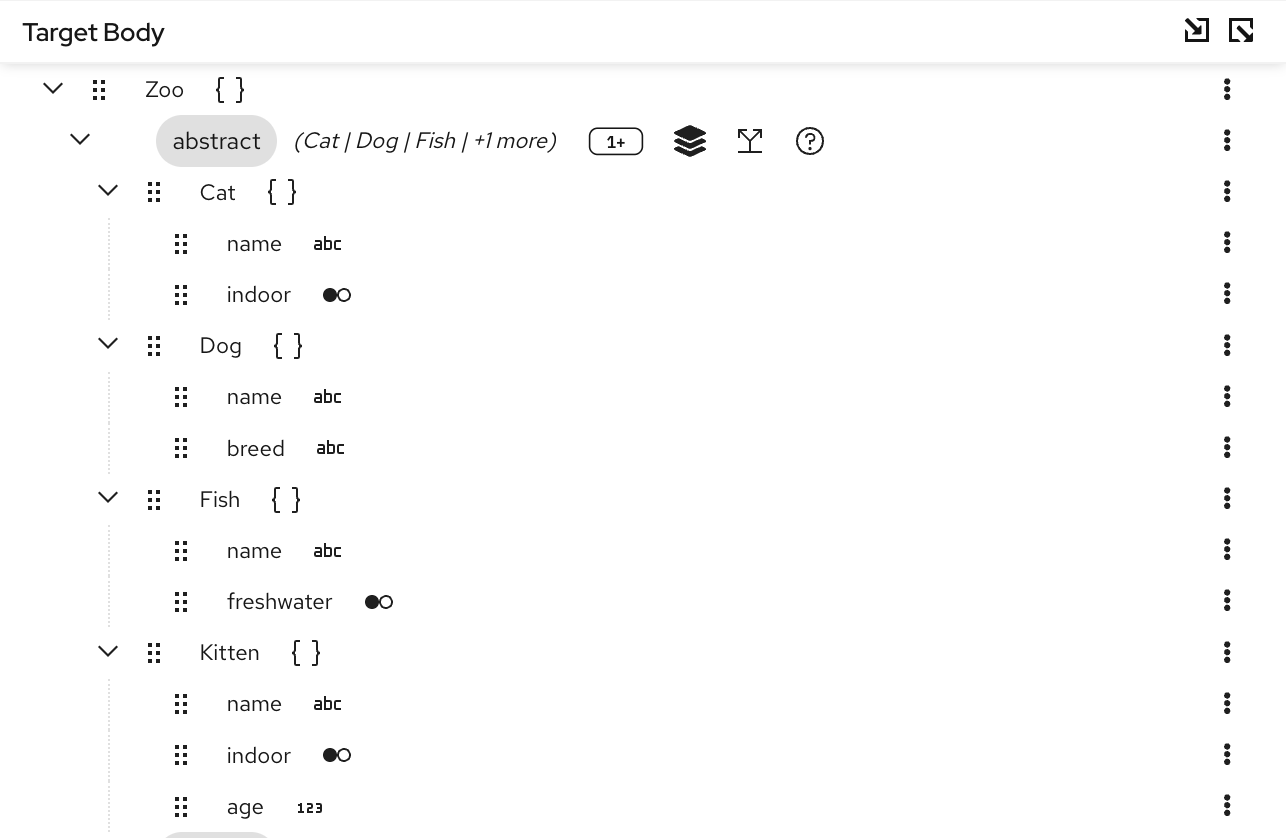
You must either create a mapping on a substitution candidate under the abstract field, or apply field substitution.
Method 1: Using Substitute Element Modal
Explicitly select a concrete implementation using the Field Override modal:
Steps:
- Right-click on the abstract element
- Select “Override Field…” from the context menu
- Select the “Substitute Element” radio button in the modal
- Choose a concrete implementation from the list of substitution candidates
- The field updates to show the selected concrete element
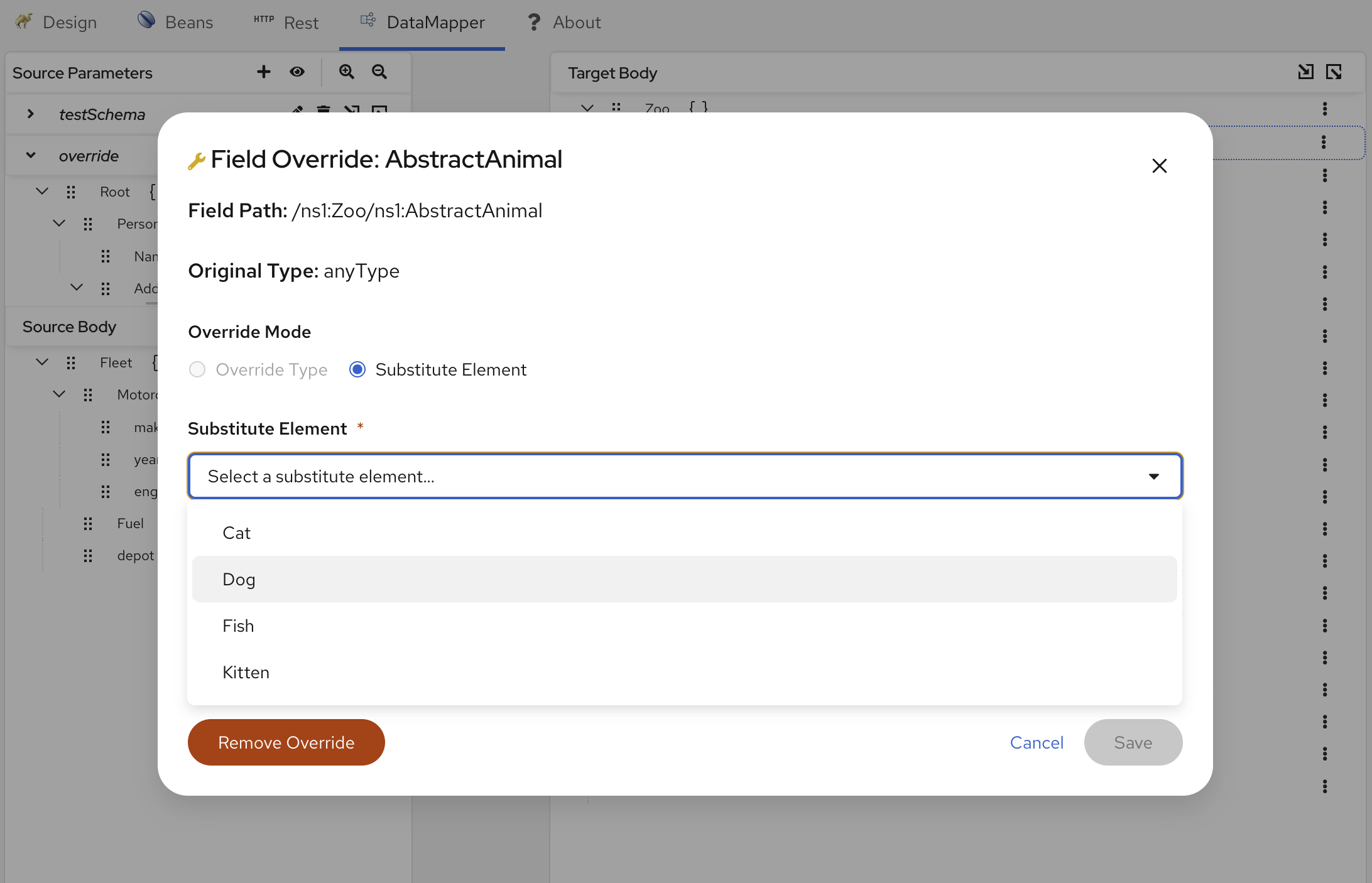
Method 2: Using Context Menu
For quick selection, you can use the context menu directly:
Steps:
- Right-click on the abstract element
- Select the concrete implementation directly from the context menu
- The field updates to show the selected element
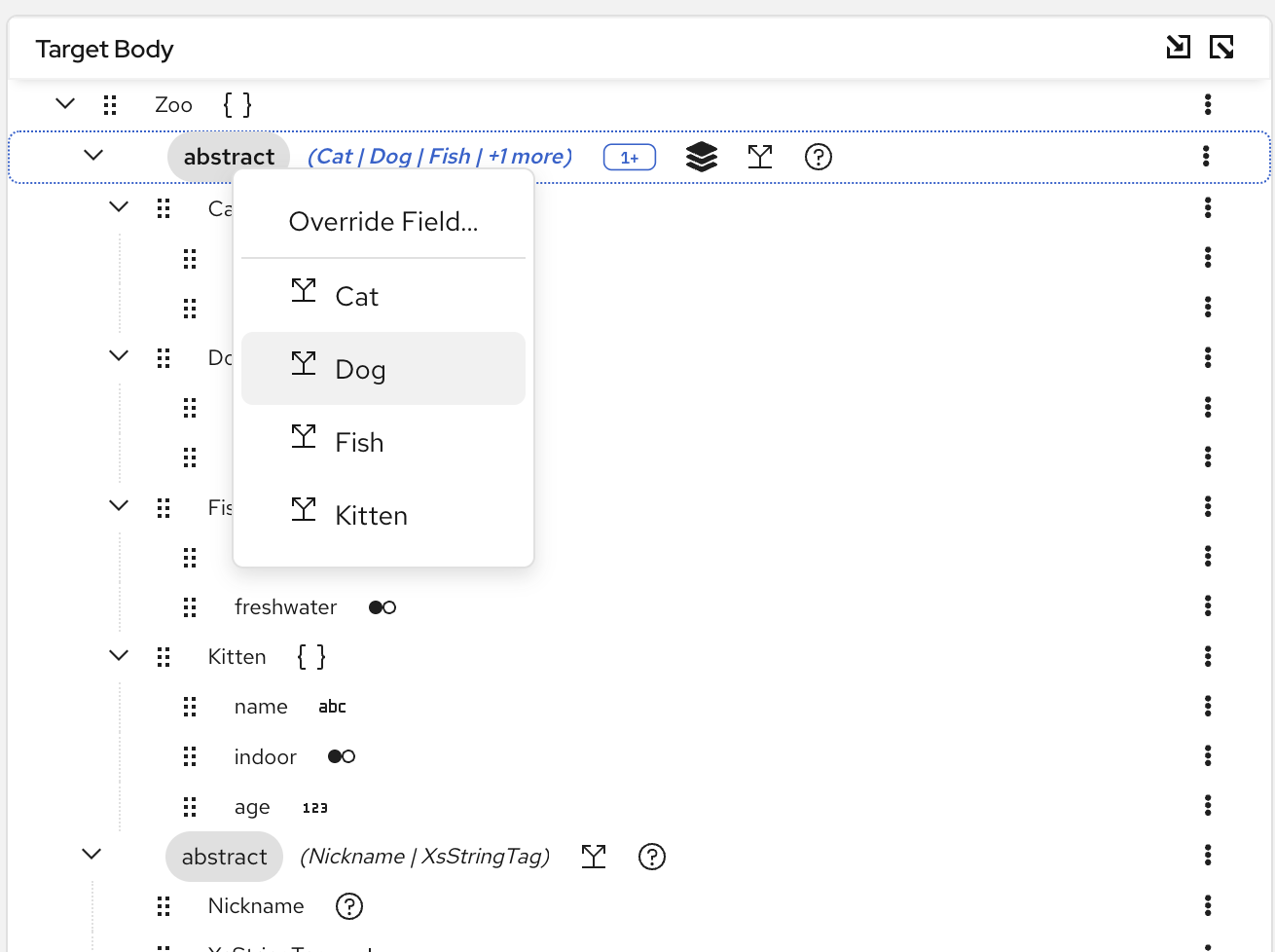
Use the Field Override modal for detailed selection or the context menu for quick selection. Once selected, the abstract element is replaced with the concrete implementation in the generated XSLT.
Identifying Overridden Fields
Fields with active overrides are easy to identify in the document tree:
- Override Type - Marked with an override type icon indicator
- Substitute Element - Marked with a substitution icon indicator
These visual indicators help you quickly see which fields have been modified from their original schema definitions.
Resetting a Field Override
To restore the original schema-defined field:
- Right-click on the overridden field (marked with an icon indicator)
- Select “Reset Override” from the context menu
- The field returns to its original type or element
- The icon indicator is removed
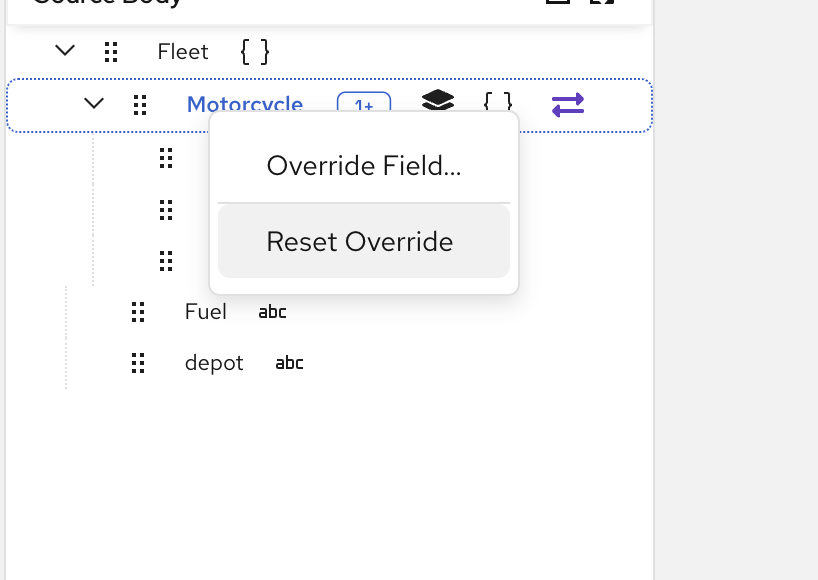
Resetting a field override may invalidate mappings that reference fields only available in the overridden version.
Choice Support
Understanding xs:choice in Schemas
XML Schema xs:choice defines a set of element options where the behavior depends on the maxOccurs attribute:
- maxOccurs=1 (default): Only one option can appear in a valid XML document
- maxOccurs>1: Multiple instances can appear, potentially mixing different choice options
The DataMapper represents choices as expandable choice groups in the document tree. The mapping interface allows selecting one option at a time, regardless of the maxOccurs value.
Selecting a Choice Member
When the document tree contains a choice group, it appears as a collapsible node with the available options listed as children, similar to how abstract elements display their substitution candidates.
Steps:
- Expand the choice group in the document tree
- Right-click on the choice group to open the context menu
- Select the choice member you want to use from the menu
- The selected member expands, showing its child fields available for mapping
- Non-selected members are hidden from the tree
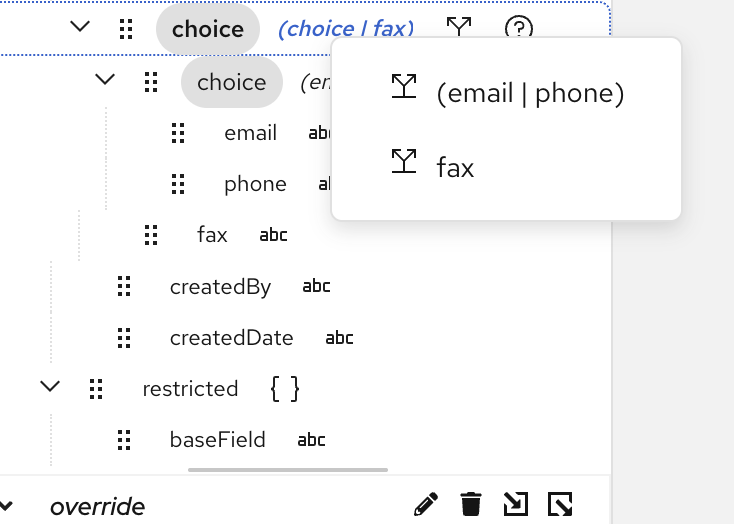
You can change the selected choice member at any time. However, mappings to the previously selected member’s fields will remain in the XSLT and may need to be manually reviewed or removed.
Working with Nested Choices
The DataMapper supports nested choice elements. When multiple nested choices are selected, an indicator (e.g., ×2) appears next to the field showing how many choice wrapper levels have been collapsed.
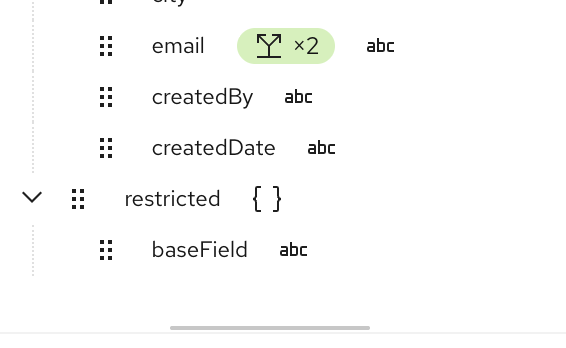
Showing All Choice Options
To view all available choice options without a specific selection:
- Right-click on the choice group
- Select “Show All Choice Options”
- All choice members return to their default unselected state
Next Steps
You’ve now learned the advanced DataMapper features for working with complex schemas! You can:
- Use field overrides to work with polymorphic data structures
- Apply type overrides for derived types or field substitutions for substitution groups
- Extend your schemas with additional type definitions and substitution groups
- Handle choice elements in your schemas, including nested choices
- Work with abstract elements and their substitution candidates
For more information, return to the DataMapper overview or explore the Kaoto documentation.