Managing Integrations
Managing integrations is a core part of working with Kaoto. This guide covers everything you need to know about creating, organizing, and managing integrations in your projects.
Understanding Resource Types
Kaoto supports three main resource types for building integrations, each determined by its file extension:
Camel Route (.camel.yaml)
In Apache Camel, a route is a set of processing steps that are applied to a message as it travels from a source to a destination. A route typically consists of a series of processing steps that are connected in a linear sequence.
Key characteristics:
- Supports multiple integrations per file (though single integration per file is recommended)
- Full access to all Camel components and patterns
- Ideal for complex integration scenarios
Learn more about Apache Camel Routes
Kamelet (.kamelet.yaml)
Kamelets are reusable integration templates that encapsulate integration logic. Think of them as pre-built, configurable integration components that you can use across multiple projects.
Key characteristics:
- Single integration per file only
- Designed for reusability and sharing
Learn more about Apache Camel Kamelets
Pipe (.pipe.yaml)
Pipes connect Kamelets together to create simple integration flows. They provide a declarative way to build integrations by connecting sources to sinks through Kamelets.
Key characteristics:
- Single integration per file only
- Simplified syntax for connecting Kamelets
Learn more about Apache Camel Pipes
Working with Camel Routes
Best Practice: Single Integration Per File
We strongly recommend organizing your Camel Routes with one integration per file. This approach provides several important benefits:
- Better organization: Each file has a clear, single purpose
- Easier version control: Changes to one integration don’t affect others
- Clearer file structure: Project organization is more intuitive
- Improved maintainability: Easier to find, update, and test individual integrations
- Better collaboration: Reduces merge conflicts in team environments
When to use multi-integration files:
- Legacy code that already uses this pattern
- Tightly coupled integrations that must be deployed together
- Very simple integrations that are logically grouped
For most projects, stick with single integration per file as your default approach.
Creating a New Integration
Navigate to Kaoto Perspective
- Open VS Code
- Click on the Kaoto icon in the Activity Bar (left sidebar)
- The Kaoto perspective will open, showing the route designer
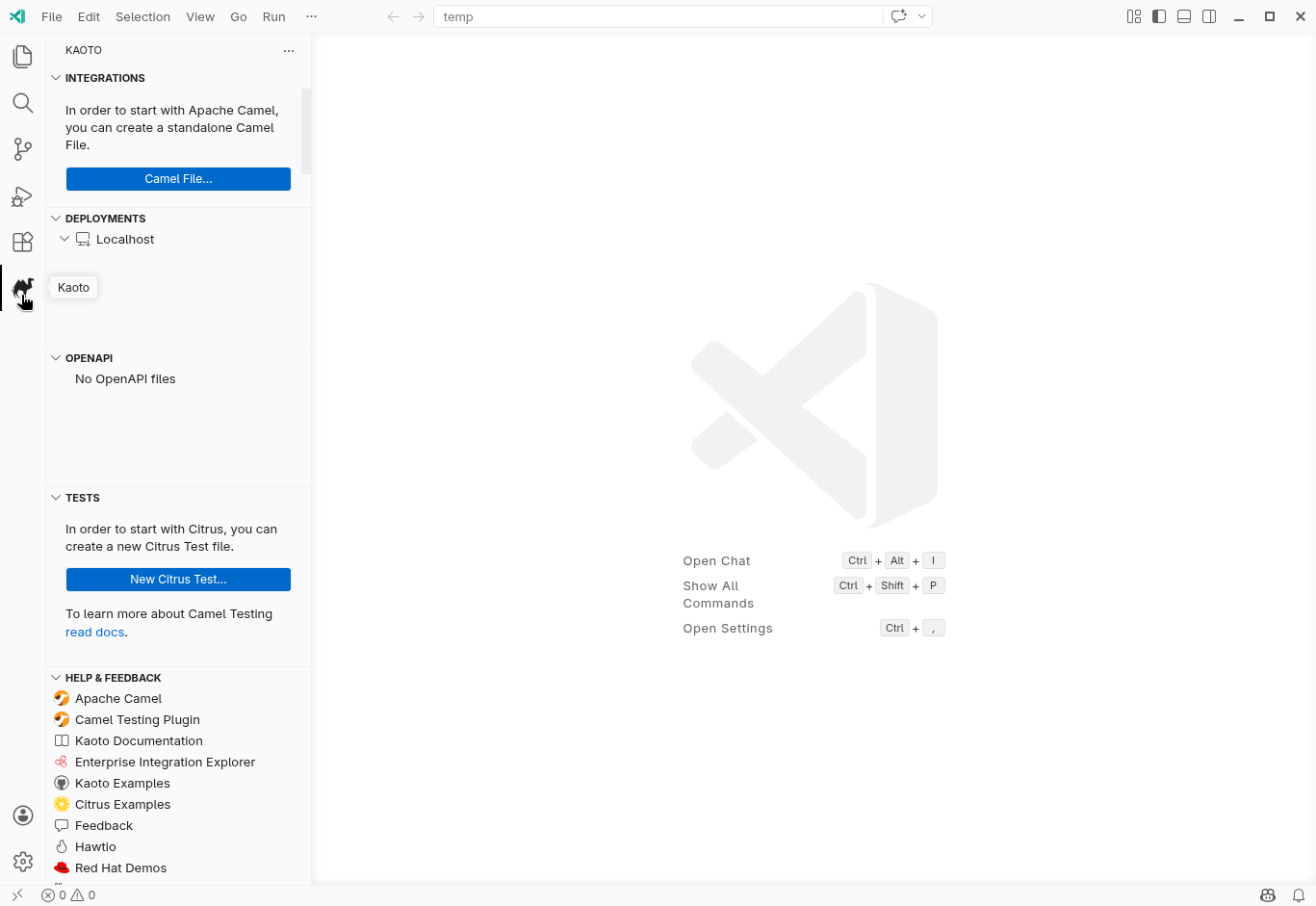
Kaoto perspective
Create a New Camel Route
In the Kaoto perspective, click “Camel File…”
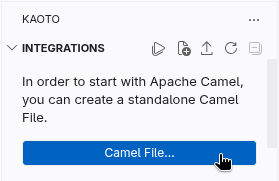
New Camel file
Choose “Camel Route” as the route type
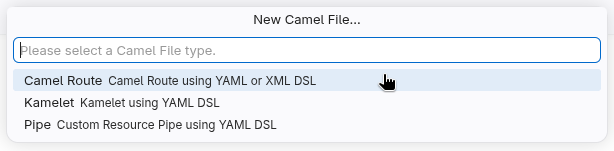
Camel route item
Choose “YAML DSL” as the route type
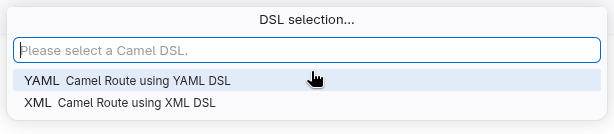
YAML DSL item
Give a name to the new route

New route name
A basic timer-based route will be created automatically
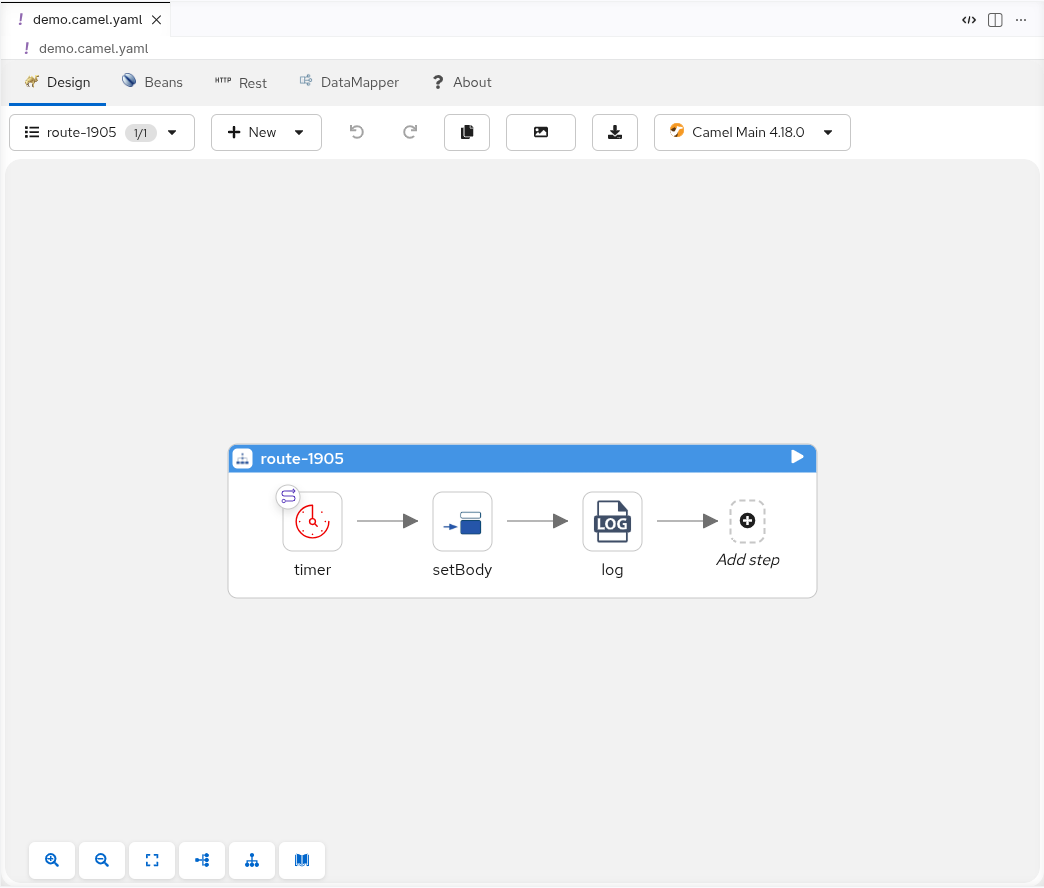
The integration name doesn’t need to match the file name. You can add multiple integrations to the same file using the same workflow.
The Flows List
For Camel Routes, the flows list in the top toolbar is your central control panel for managing all integrations and entities in your current file. It provides quick access to:
- 1. Rename: Edit integration names inline
- 2. Visibility control: Show or hide integrations on the canvas
- 3. Delete: Remove integrations from the file
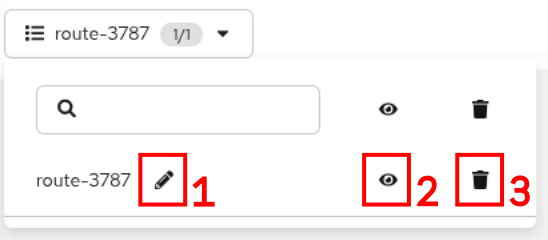
Flows list
Renaming Integrations
To rename an existing integration:
- Locate the integration in the flows list
- Click on the pencil button
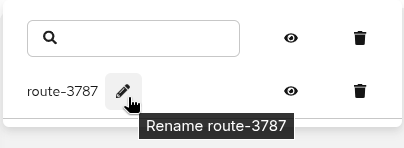
Pencil button
- Type the new name
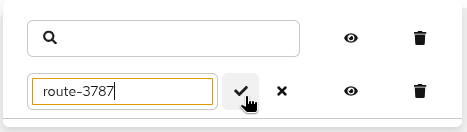
The name gets editable
- Press Enter or click in the accept button
- Save the file
The file name does NOT automatically update when you rename an integration. Only the integration ID inside the file changes. An unsaved changes indicator will appear until you save.
Controlling Integration Visibility
When working with files containing multiple integrations, you can control which integrations are visible on the canvas:
- Locate the integration in the flows list
- Click the eye icon next to the integration name
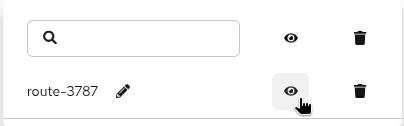
Visibility button
- The integration toggles between visible and hidden on the canvas
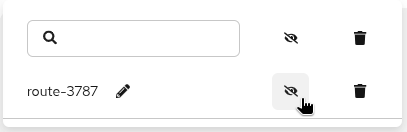
Hidden flow
Hidden integrations remain in the file but don’t clutter your canvas, making it easier to focus on specific integrations in complex files.
Deleting Integrations
To delete an integration:
- Locate the integration in the flows list
- Click the delete icon next to the integration name
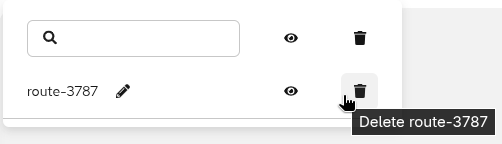
Delete button
- Confirm deletion in the dialog that appears
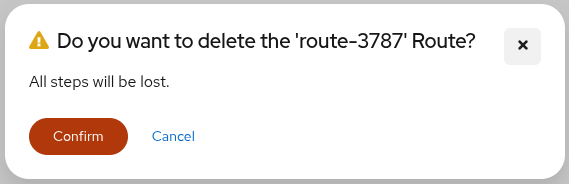
Delete confirmation modal
- The integration content is removed from the file
The file itself is NOT deleted, only the integration content is removed.
For single-integration files, the file becomes empty after deletion.
For multi-integration files, a new demo integration is created.
Other Camel Entities in Kaoto
Beyond integrations, Kaoto supports additional Apache Camel entities for advanced integration patterns. All of these can be created via the “Add new” dropdown in the top toolbar. Add new dropdown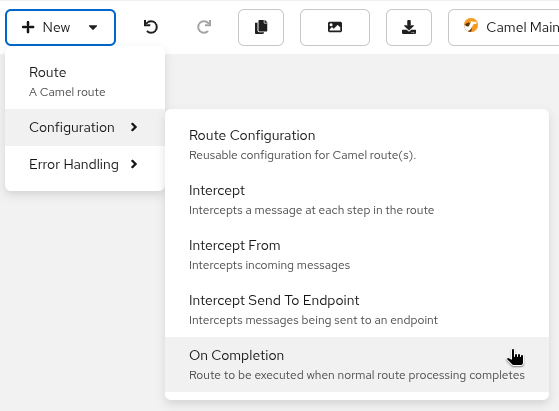
RouteConfiguration
RouteConfiguration defines reusable configuration that can be applied to multiple integrations, such as error handlers, interceptors, and other cross-cutting concerns.
Use case: Centralize common integration behaviors across your integration, reducing duplication and ensuring consistency.
Learn more about RouteConfiguration
Intercept, InterceptFrom, and InterceptSendToEndpoint
Intercept intercepts and processes all messages passing through the integration, regardless of their source or destination.
Intercept
Intercept is a simple Intercept that intercepts all messages passing through the integration.
Use case: Implement global error handling, logging, or metrics collection across your integrations.
InterceptSendToEndpoint
InterceptSendToEndpoint intercepts messages being sent to specific endpoints, allowing you to monitor or modify messages before they reach their destination.
Use case: Monitor, modify, or redirect messages going to particular destinations, useful for debugging or implementing conditional routing.
Learn more about InterceptSendToEndpoint
InterceptFrom
InterceptFrom intercepts messages coming from specific endpoints, allowing you to process or validate messages before they enter your integration logic.
Use case: Process or validate messages from particular sources before integration processing begins, ensuring data quality and consistency.
Learn more about InterceptFrom
ErrorHandler
ErrorHandler defines how errors are handled during message processing, including retry policies, dead letter channels, and error logging strategies.
Use case: Implement robust error handling strategies for your integrations, ensuring failures are handled gracefully and consistently.
OnException
OnException catches specific exceptions and defines custom handling logic for different error types, allowing you to respond differently based on the type of error encountered.
Use case: Handle different exceptions differently - for example, retry network errors automatically but log validation errors for manual review.