Process a CSV file

Introduction
In this hands-on workshop, you will build a complete data processing pipeline using Kaoto’s visual designer and Apache Camel. You’ll work with real healthcare data from the Synthea patient dataset 1 and learn how to combine multiple Enterprise Integration Patterns (EIPs) to create a robust CSV processing system.
What You’ll Learn:
- File polling and CSV data ingestion
- Content-based routing and data validation
- Database integration with Postgres
- Message publishing with Apache Kafka
- Error handling and data quality management
What You’ll Build: A five-route integration pipeline that reads patient data from a CSV file, validates records, stores valid data in a database, publishes to Kafka for monitoring, and captures invalid records for review.
Prerequisites
Before starting this workshop, ensure you have the following installed and configured on your system:
Required Software
- Visual Studio Code - Download from code.visualstudio.com
- Kaoto Extension for VSCode - Install from the VSCode Marketplace
- Podman Desktop or Docker Desktop - For running containerized services
- Podman: podman.io/docs/installation, first step needs an additional step after installing found in this link
- Docker: docs.docker.com/get-docker
- Java Development Kit (JDK) 17 or later - Required for running Apache Camel
- Download from Adoptium or your preferred JDK distribution
- Apache Camel JBang (Optional but recommended) - For easy infrastructure setup
- Install via:
curl -Ls https://sh.jbang.dev | bash -s - trust add https://github.com/apache/camel - Then:
jbang app install camel@apache/camel
- Install via:
- Database Manager (Optional but recommended) - For viewing and managing Postgres data
- DBeaver Community Edition - Free, cross-platform database tool
- Alternatives: pgAdmin, DataGrip, or psql command-line tool
Required Knowledge
This workshop assumes you have:
- Basic understanding of integration concepts - Familiarity with data processing pipelines
- Basic command-line skills - Ability to navigate directories and run commands
- Basic understanding of CSV files - Knowledge of comma-separated value format
- Familiarity with VSCode - Basic navigation and file management
What You’ll Set Up During the Workshop
The following will be configured as part of the workshop steps:
- Postgres database (via container)
- Apache Kafka (via container)
- Sample patient dataset (CSV file)
- Camel integration routes
If you’re new to Kaoto or Apache Camel, consider reviewing the Kaoto documentation.
Project Setup
- Install the Kaoto extension for VSCode and Podman Desktop.
- Create a new directory for the workshop:
$ mkdir patient-csv
- Download the dataset from the Maven Analytics Data Playground.
- Create the following directory structure:
patient-csv/
├── test-file/              # Place patients.csv here
│   └── patients.csv        # Your downloaded CSV file
├── errors/                 # Will be auto-created later
└── application.properties  # Will be created later
Description
This workshop guides you through building a complete data processing pipeline using Apache Camel and Kaoto. You will create five interconnected routes that work together to process patient data from a CSV file. The pipeline demonstrates key EIPs including file polling, content-based routing, data transformation, and message publishing.
The Five Routes:
- Route 1: CSV Ingestion - Reads and splits the CSV file into individual patient records
- Route 2: Data Filtering - Validates records and routes them based on data quality
- Route 3: Database Storage - Persists valid records to Postgres
- Route 4: Error Handling - Captures invalid records for review and correction
- Route 5: Kafka Monitoring - Publishes valid records to Kafka for real-time monitoring
Data Flow Diagram:
CSV File → Read & Split → Filter by ZIP code
                              ├─ Valid → Database + Kafka
                              └─ Invalid → Error Files
Each section below walks you through configuring one route, building toward a complete end-to-end integration.
Route 1: CSV Ingestion and Archiving
Goal
This route reads the source CSV file and splits it into individual patient records for downstream processing. Once the records are forwarded, the original file is moved to a “done” directory to prevent reprocessing.
Step-by-Step Instructions
Step 1: Create a New Route
- In VSCode, look for the Kaoto icon in the left sidebar and click it
- Click the Camel File… button

If the previous Camel File… button is not showing, click on the second icon next to Integrations (a file with a + sign).
In the dialog that appears:
- Select Camel Route as the file type
- Select YAML as the Camel DSL
- Choose
patient-csvas the saving folder - Name the file
route-csv
A new route will appear in the Kaoto visual designer with a default timer component.
- Select Camel Main 4.16.0 from the options that appear when clicking the Camel version. Other options present some variations related to the versions releases that may differ in some of the components presentation.

Step 2: Configure the File Reader Component
The first component needs to read files from the test-file directory.
- Hover over the first component (timer) in the visual designer
- Click the Replace icon (circular arrow) that appears

In the search box, type
fileand select the File componentClick on the File component to open its properties panel on the right
Navigate to the All tab at the top of the properties panel
Configure the following properties:
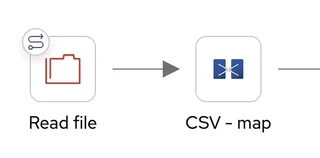
Property Value What it does directoryName ./test-fileSpecifies which folder to monitor description Read fileAdds a human-readable label idempotent truePrevents processing the same file twice idempotentKey ${file:name}Uses filename as unique identifier move doneMoves processed files to a “done” subfolder Save with the keyboard command
CTRL/CMD+Sor click in File (VS Code menu bar top left) and click on Save
Always Save after configuring each component to preserve your changes.
Step 3: Add CSV Parsing (Unmarshal)
Now we need to parse the CSV content into a structured format.
- Hover over the second component (SetBody) in the route
- Click the Replace icon
- Search for
unmarshaland select the Unmarshal processor - Click on the Unmarshal component to open its properties
- Navigate to the All tab
- Configure the following:
Property Value What it does description CSV - mapAdds a human-readable label Data Format Type CSVHandles CSV payloads header Id,BIRTHDATE,DEATHDATE,PREFIX,FIRST,LAST,SUFFIX,MAIDEN,MARITAL,RACE,ETHNICITY,GENDER,BIRTHPLACE,ADDRESS,CITY,STATE,COUNTY,ZIP,LAT,LONDefines CSV column names trim trueRemoves whitespace from values useMaps trueConverts each row to a map/dictionary
The header value should be copied from the first line of your patients.csv file. This tells Camel what each column represents.
- Save the changes
Step 4: Split Records
We need to split the CSV data into individual patient records.
- Hover over the arrow after the Unmarshal component
- Click the + icon that appears on the arrow

Search for
splitand select the Split processorClick on the Split component to open its properties
Navigate to the Required tab
Configure:
- Language: Select CSimple from the dropdown
- Expression: Enter
${body}
Navigate to the All tab
Add:
- description:
Split by patient
- description:
Save the changes
💡 What’s happening: The Split processor takes the list of all patient records and processes each one individually through the rest of the pipeline.
Step 5: Send to Next Route
Finally, we need to send each patient record to the next route for filtering.
Hover over the last component in the route (Logger)
Click the Replace icon
Search for
directand select the Direct componentClick on the Direct component to open its properties
Navigate to the Required tab
Set name to:
From Read CSVSave the changes
💡 What is Direct? The Direct component is like a named pipe that connects routes together. The name
From Read CSVwill be used by the next route to receive data from this route.
Step 6: Review Your Route
Your completed route should look like this in the visual designer:

✅ Checkpoint: You’ve completed Route 1! This route will read the CSV file, parse it, split it into individual records, and send each record to the next route.
Route 2: Data Filtering and Routing
Goal
This route validates patient records by checking if they have a ZIP code. Valid records (with ZIP code) are sent to both the database and Kafka. Invalid records (missing ZIP code) are sent to error handling.
Step-by-Step Instructions
Step 1: Create a New Route
- This step follows the same process as in the previous route (Route 1: CSV Ingestion and Archiving) step 1
- Name the new route
filter-publish

Step 2: Configure the Direct Receiver
This route receives data from Route 1 through the Direct component.
- Replace the first component (timer) with a Direct component
- In the Required tab, set:
- name:
From Read CSV(must match the name from Route 1!)
- name:
- In the All tab, set:
- description:
Receiving from CSV route
- description:
- Save the changes
The Direct name must exactly match the one used in Route 1 for the routes to connect properly.
Step 3: Add Filter for Data Validation
Now we’ll add logic to check if the ZIP code is present.
Replace the second component with a Filter processor
In the All tab, configure:
Property Value What it does description Filter by ZIP codeAdds a human-readable label Expression language Simple The language for the filter expression Expression ${body[ZIP]} == null || ${body[ZIP]} == ""Checks if ZIP is missing or empty Save the changes
💡 Understanding the Filter: This expression returns
truefor invalid records (missing ZIP), which will be processed inside the filter. Valid records will skip the filter and continue to the next step.
Step 4: Handle Invalid Records (Inside Filter)
Click inside the filter placeholder (the dotted box) to add components that handle invalid records.

Add a Direct component:
- name:
Send-To-Error - description:
Sending error
- name:
Add a Stop processor after the Direct component
- This stops processing for invalid records after sending them to error handling
Save the changes
💡 What’s happening: Invalid records are sent to the error handling route and then stopped. They won’t continue to the database or Kafka.
Step 5: Add Multicast for Valid Records
After the filter (outside of it), we need to send valid records to multiple destinations.
- Replace the last component (log, after the filter) with a Multicast processor
- In the All tab, set:
- description:
Multicast Not Null Data
- description:
- Save the changes
💡 What is Multicast? Multicast sends the same message to multiple destinations simultaneously. We’ll use it to send valid records to both the database and Kafka.
Step 6: Configure Database Destination
Click inside the multicast to add the first destination.
- Add a Direct component:
- name:
Send-To-DB - description:
Sending to DB
- name:
- Save the changes
Step 7: Configure Kafka Destination
Still inside the multicast, add the second destination.
Add a Kafka component
In the All tab, configure:
Property Value What it does description Sent by KafkaAdds a human-readable label brokers {{csv-processor.kafka.brokers}}Kafka server address (from properties file) topic Kafka-MessageThe Kafka topic name Save the changes
Step 8: Create Application Properties File
The Kafka component references a property placeholder. Let’s create the configuration file.
- Add the following content in
application.propertiesfile (created in the project setup):
# Kafka Configuration
csv-processor.kafka.brokers = localhost:9092
- Save the file
Step 9: Set Up Kafka (Choose One Option)
Before running the pipeline, you need a Kafka instance. Choose one of these options:
Option A: Using Camel Infra (Recommended for beginners)
Start your container runtime:
- Open Podman Desktop or Docker Desktop
Open a terminal in VSCode
Run the Camel Infra command:
$ camel infra run kafkaWait for Kafka to start:
- You’ll see log messages indicating Kafka is starting
- The terminal will continue running - this is normal, keep it open
💡 What does this do? Camel Infra automatically downloads and starts a Kafka container with sensible defaults, perfect for development and testing.
Option B: Using Podman/Docker Compose
Get a compose file:
- Visit the Kaoto examples repository
- Download the Kafka compose file from the examples
Start Kafka:
   $ podman-compose -f kafka-postgres.compose.yaml up -d
   # or
   $ docker-compose -f kafka-postgres.compose.yaml up -d
- Verify Kafka is running:
   $ podman ps
   # or
   $ docker ps
You should see Kafka container running.
Step 10: Review Your Route
Your completed route should look like this:

✅ Checkpoint: You’ve completed Route 2! This route validates records and routes them to the appropriate destinations based on data quality.
Route 3: Database Storage
Goal
This route receives valid patient records and stores them in a Postgres database for long-term persistence and analytics.
Step-by-Step Instructions
Step 1: Set Up Postgres (Choose One Option)
Before creating the route, you need a Postgres instance. Follow the same option, A or B, chosen in the previous route when configuring Kafka.
Option A: Using Camel Infra (Recommended for beginners)
Ensure your container runtime is running:
- Open Podman Desktop or Docker Desktop if not already running
Open a new terminal in VSCode
Run the Camel Infra command:
$ camel infra run postgres
Wait for Postgres to start:
- You’ll see log messages indicating Postgres is starting
Note the default credentials:
- Username:
test - Password:
test - Database:
test - Port:
5432
- Username:
💡 What does this do? Camel Infra automatically downloads and starts a Postgres container with default credentials, perfect for development and testing.
Option B: Using Podman/Docker Compose
- Verify Postgres is running:
   $ podman ps
   # or
   $ docker ps
You should see a Postgres container running.
Step 2: Update Application Properties
Add Postgres configuration to your application.properties file:
# Postgres Configuration
csv-processor.postgres.server-name = localhost
csv-processor.postgres.username = test
csv-processor.postgres.password = test
csv-processor.postgres.database-name = test
Save the file.
Step 3: Create Database Table
Now you need to connect to your Postgres instance and create the patients table.
Connect to Postgres:
Choose one of these methods to connect:
Option A: Using DBeaver (Recommended if installed)
- Open DBeaver
- Click Database → New Database Connection
- Select PostgreSQL and click Next
- Enter the connection details:
- Host:
localhost - Port:
5432 - Database:
test - Username:
test - Password:
test
- Host:
- Click Test Connection to verify
- Click Finish
Option B: Using psql command line
Open a new terminal and run:
  $ psql -h localhost -U test -d test
  # When prompted, enter password: test
Option C: Using pgAdmin or other database tools
Use the same connection details as Option A above.
Create the table:
Once connected, execute this SQL statement:
CREATE TABLE patients (
    id character(64) NOT NULL,
    birthdate character(10),
    ZIP character(5)
);
This simplified table includes only three fields for the workshop. In a real application, you’d include all patient fields.
Verify the table was created:
Run this query to confirm:
SELECT * FROM patients LIMIT 1;
You should see an empty result set with the three column headers (id, birthdate, ZIP).
Step 4: Create a New Route
- This step follows the same process as in the Route 1: CSV Ingestion and Archiving step 1
- Name the route
save-db
Step 5: Configure the Direct Receiver
- Replace the first component with a Direct component
- In the Required tab, set:
- name:
Send-To-DB(must match Route 2!)
- name:
- In the All tab, set:
- description:
Receiving for DB
- description:
- Save the changes
Step 6: Add JSON Marshaller
The PostgreSQL Kamelet expects JSON input, so we need to convert the data.
- Replace the second component (SetBody) with a Marshal processor
- In the Required tab:
- Select JSON as the format
- In the All tab:
- description:
Convert to JSON
- description:
- Save the changes
💡 What is Marshal? Marshal converts data from one format to another. Here, we’re converting the map structure to JSON format.
Step 7: Add PostgreSQL Sink
Now we’ll add the component that actually writes to the database.
Replace the last component (Logger) with a PostgreSQL Sink Kamelet (search for “postgresql sink”)
In the All tab, configure:
Property Value What it does description Save in PostgresAdds a human-readable label databaseName {{csv-processor.postgres.database-name}}Database name from properties password {{csv-processor.postgres.password}}Database password from properties serverName {{csv-processor.postgres.server-name}}Database server address from properties username {{csv-processor.postgres.username}}Database username from properties query INSERT INTO patients (id, birthdate, ZIP) VALUES (:#${body[Id]}, :#${body[BIRTHDATE]}, :#${body[ZIP]});SQL insert statement Save the changes
💡 Understanding the Query: The
:#${...}syntax safely inserts values from the message body into the SQL query, preventing SQL injection attacks.
Step 8: Review Your Route
Your completed route should look like this:

✅ Checkpoint: You’ve completed Route 3! This route will store all valid patient records in the Postgres database.
Route 4: Error Handling
Goal
This route captures invalid patient records (those missing ZIP codes) and writes them to error files for later review and correction.
Step-by-Step Instructions
Step 1: Create a New Route
- This step follows the same process as in the Route 1: CSV Ingestion and Archiving step 1
- Name the route
error-handling
Step 2: Configure the Direct Receiver
- Replace the first component with a Direct component
- In the Required tab, set:
- name:
Send-To-Error(must match Route 2!)
- name:
- In the All tab, set:
- description:
Receiving error
- description:
- Save the changes
Step 3: Add CSV Marshaller
We need to convert the data back to CSV format for the error file.
Replace the second component (SetBody) with a Marshal processor
In the Required tab:
- Select CSV as the format
In the All tab, configure:
Property Value What it does description Convert to CSVAdds a human-readable label header Id,BIRTHDATE,DEATHDATE,PREFIX,FIRST,LAST,SUFFIX,MAIDEN,MARITAL,RACE,ETHNICITY,GENDER,BIRTHPLACE,ADDRESS,CITY,STATE,COUNTY,ZIP,LAT,LONCSV column headers Save the changes
Use the same header as in Route 1 to maintain consistency with the original CSV format.
Step 4: Add File Writer
Now we’ll write the error records to files.
Replace the last component (Logger) with a File component
In the All tab, configure:
Property Value What it does description Create Error FilesAdds a human-readable label directoryName ./errorsDirectory for error files fileName ${date:now:yyyyMMddHHmmss}_${exchangeId}.csvUnique filename with timestamp Save the changes
💡 Understanding the Filename:
${date:now:yyyyMMddHHmmss}creates a timestamp (e.g., 20260127143000)${exchangeId}adds a unique identifier for each message- This ensures each error file has a unique name and won’t overwrite others while providing traceability
Step 5: Review Your Route
Your completed route should look like this:

✅ Checkpoint: You’ve completed Route 4! This route will capture all invalid records and save them to timestamped error files for review.
Route 5: Kafka Monitoring
Goal
This route demonstrates real-time monitoring by consuming messages from Kafka and logging them to the console. This provides visibility into the data flowing through your pipeline.
Step-by-Step Instructions
Step 1: Create a New Route
- This step follows the same process as in the Route 1: CSV Ingestion and Archiving step 1
- Name the route
kafka-monitor
Step 2: Configure Kafka Consumer
Replace the first component with a Kafka component
In the All tab, configure:
Property Value What it does description Receiver KafkaAdds a human-readable label brokers {{csv-processor.kafka.brokers}}Kafka server address from properties topic Kafka-MessageThe topic to consume from (matches Route 2) autoOffsetReset earliestStart reading from the beginning of the topic Save the changes
💡 What is autoOffsetReset? Setting this to
earliestmeans the consumer will read all messages from the beginning of the topic, even those published before the consumer started. This is useful for testing and ensures you don’t miss any data.
Step 3: Add Log Data component
- Replace the second component with a Log data component
- In the Required tab, set:
- name:
InfoLogger
- name:
- Save the changes
💡 What does this do? This component logs basic information about each message, including headers and metadata.
Step 4: Add Logger EIP
Leave the Logger processor (note: this is different from the Log data component)
In the All tab, configure:
Property Value What it does description LoggerAdds a human-readable label message ${body} For KafkaCustom message to log Save the changes
💡 Understanding the Message: The
${body}expression will be replaced with the actual message content, followed by the text “For Kafka”. This helps you see what data is flowing through the pipeline.
Step 5: Review Your Route
Your completed route should look like this:

✅ Checkpoint: You’ve completed Route 5! This route will consume messages from Kafka and display them in the console for monitoring.
Running the Complete Pipeline
Congratulations! You’ve built all five routes. Now it’s time to run the complete pipeline and see it in action.
Prerequisites Check
Before running, ensure:
- ✅ All five routes are created and saved
- ✅
application.propertiesfile exists with correct configuration - ✅
patients.csvfile is in thetest-file/directory - ✅ Postgres is running (via Podman / Docker)
- ✅ Kafka is running (via Podman / Docker)
- ✅ Database table
patientshas been created
How to Run
- In the VSCode file explorer, locate your
patient-csvfolder - In the Kaoto extension panel, find the folder containing all your YAML route files
- Click the Play button (▶️) next to Integrations or next to the folder name


💡 Why run from the folder? Running all routes together ensures they execute within the same Camel context, allowing them to communicate through the Direct endpoints.
What to Expect
When you run the pipeline, you should see:
Console output showing:
- Files being read from
test-file/ - Records being processed
- Kafka messages being consumed and logged
- Any errors or warnings
- Files being read from
File system changes:
- Original
patients.csvmoved totest-file/done/ - Error files created in
errors/(if any invalid records exist)
- Original
Database updates:
- Valid records inserted into Postgres
Monitoring the Pipeline
Watch the VSCode terminal for log messages. You should see output similar to:
INFO  [route-2308] Read file: patients.csv
INFO  [route-7542] Filtering records...
INFO  [route-3714] Saving to database...
INFO  [route-2402] {Id=123, BIRTHDATE=1990-01-01, ZIP=12345} For Kafka
Verifying Results
After the pipeline completes, verify that everything worked correctly.
1. Check File Archiving
What to verify: The original CSV file should be moved to the done directory.
How to check:
- Navigate to
patient-csv/test-file/done/ - Confirm
patients.csvis present - Verify
patient-csv/test-file/is now empty (except for the done folder)
Expected result: ✅ File successfully archived
2. Check Database Persistence
What to verify: Valid records should be stored in Postgres.
How to check:
Connect to your Postgres database and run:
SELECT COUNT(*) FROM patients;
You should see a count of all valid records (those with ZIP codes).
To see sample data:
SELECT * FROM patients LIMIT 10;
Expected result: ✅ Records present in database with id, birthdate, and ZIP values
3. Check Error Handling
What to verify: Invalid records should be written to error files.
How to check:
- Navigate to
patient-csv/errors/ - Look for CSV files with timestamps in their names (e.g.,
20260127143000_ABC123.csv) - Open one of the error files to verify it contains records with missing ZIP codes
Expected result: ✅ Error files created (if invalid records exist in your dataset)
If your custom dataset (different from the recommended for this workshop) has no records with missing ZIP codes, the errors directory will remain empty. This is normal!
4. Check Kafka Monitoring
What to verify: Valid records should be published to Kafka and logged.
How to check:
- Look at the VSCode terminal output
- Search for log messages containing “For Kafka”
- Verify you see patient record data in the logs
Expected result: ✅ Console shows messages like {Id=123, BIRTHDATE=1990-01-01, ZIP=12345} For Kafka
Expected Pipeline Behavior Summary
| Data Type | Processing Path | Result |
|---|---|---|
| Valid records (with ZIP code) | Route 1 → Route 2 → Route 3 + Route 5 | Stored in Postgres AND published to Kafka |
| Invalid records (missing ZIP code) | Route 1 → Route 2 → Route 4 | Written to timestamped error files |
| Source file | Route 1 | Moved to test-file/done/ directory |
Additional Resources
Documentation
- Kaoto Documentation - Kaoto user guide and tutorials
- Apache Camel Documentation - Complete Camel reference
- Enterprise Integration Patterns - EIP reference
Example Code
- Kaoto Examples Repository - Complete working examples
- This workshop’s complete code is available in the examples repository
Community
- Kaoto GitHub - Report issues and contribute
- Apache Camel Community - Get help and connect with other users
References
Jason Walonoski, Mark Kramer, Joseph Nichols, Andre Quina, Chris Moesel, Dylan Hall, Carlton Duffett, Kudakwashe Dube, Thomas Gallagher, Scott McLachlan, Synthea: An approach, method, and software mechanism for generating synthetic patients and the synthetic electronic health care record, Journal of the American Medical Informatics Association, 25(3), 230–238, 2018. ↩︎
